开源 MIT · Manifest V3 · 零网络请求Open source (MIT) · Manifest V3 · zero network requests

离线文件格式转换扩展
14 种格式在浏览器里互转,一个字节也不上传。
Offline file format converter for Chrome
14 formats converted in your browser, without uploading a byte.

Transfer Any File 是一款完全离线的 Chrome 扩展。Markdown、Word、PDF、Excel、CSV、JSON、HTML 与图片在你自己的电脑上完成转换:批量混合格式、自动多步链路、预览与内联编辑、ZIP 打包。无账号、无上传、无网络请求。 Transfer Any File is an offline file format converter for Chrome. Markdown, Word, PDF, Excel, CSV, JSON, HTML and images convert on your own machine — mixed-format batches, automatic multi-step chains, preview and inline editing, ZIP download. No account, no uploads, no network requests.

尚未上架 Chrome 应用商店:构建后在 chrome://extensions 以「加载未打包的扩展」安装。点击工具栏图标即在新标签页打开转换工作台。 Not on the Chrome Web Store yet: build it, then load the unpacked folder in chrome://extensions. Clicking the toolbar icon opens the workbench in a new tab.

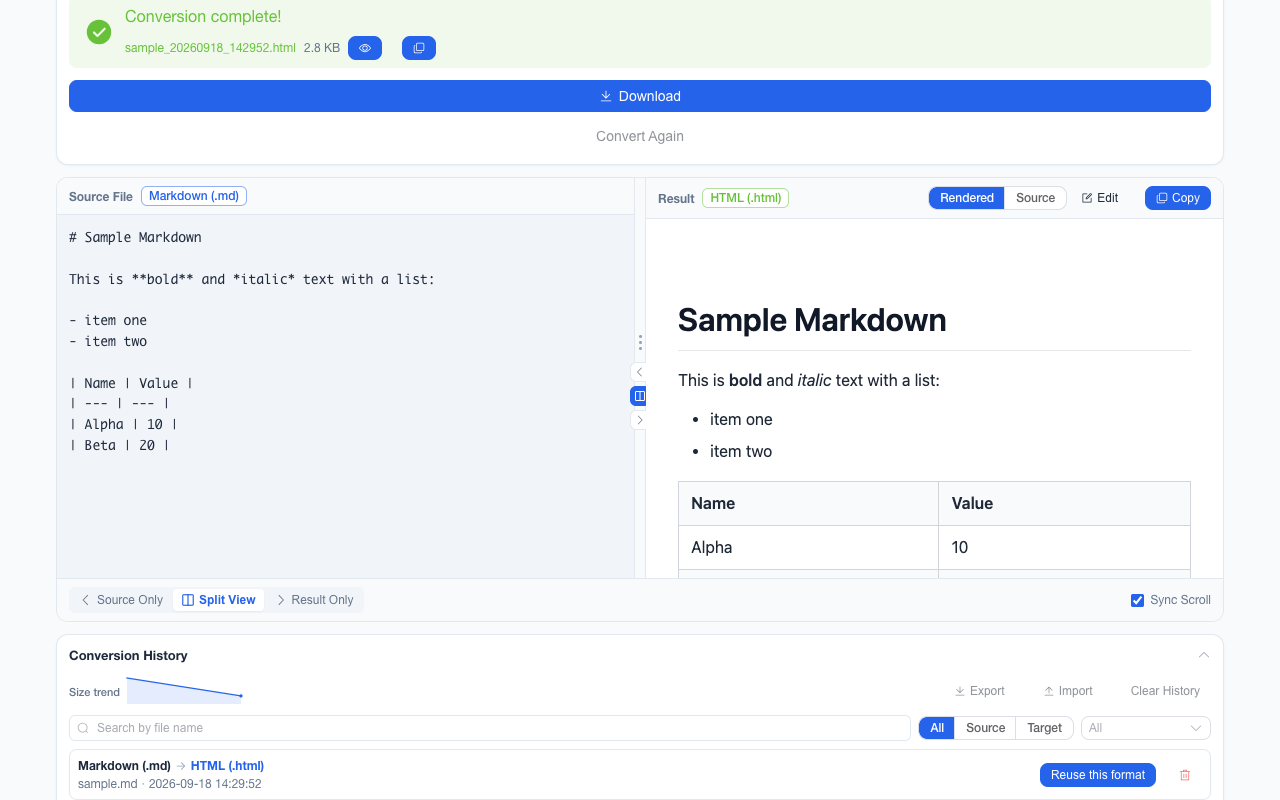
chrome-extension://••••••••/options.html — 转换工作台 / Conversion workbench
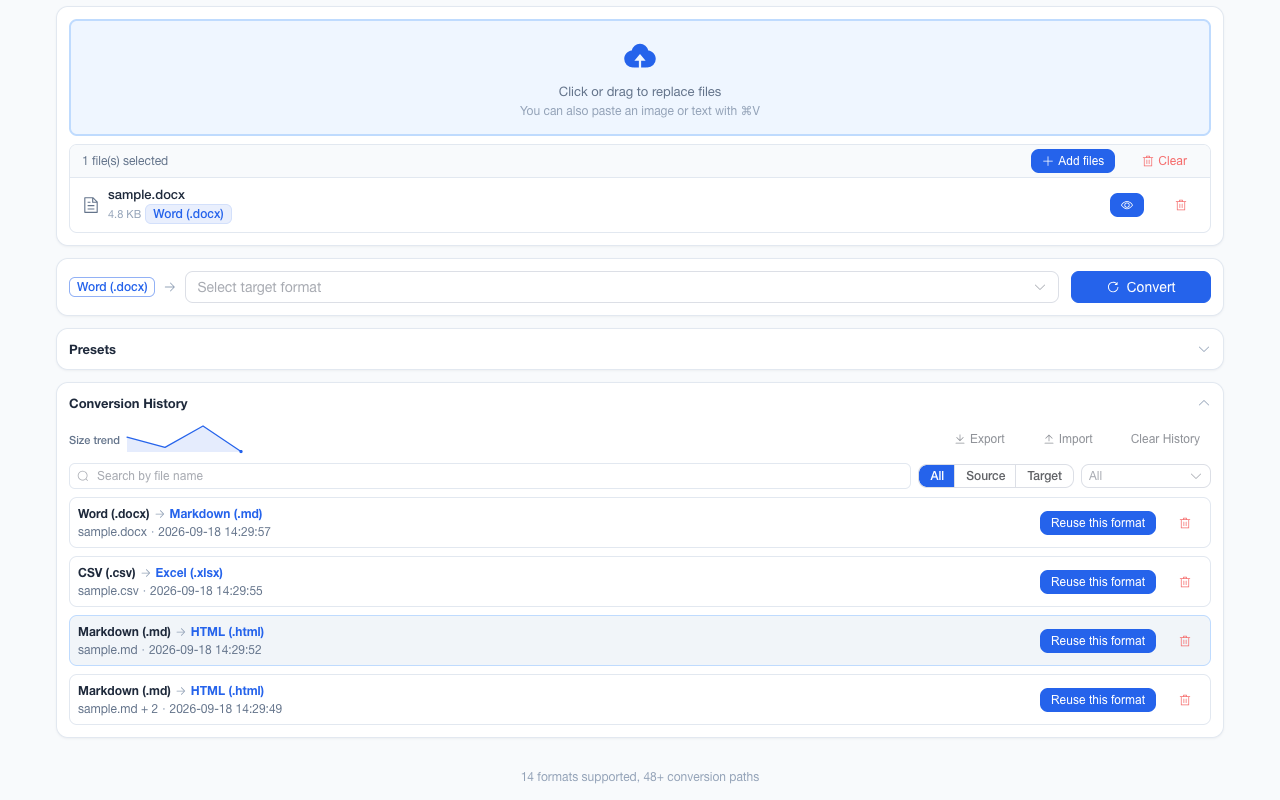
The workbench converting a Markdown file to HTML: Markdown source on the left, rendered HTML result on the right, with Rendered, Source, Edit and Copy controls above and a Download button below.
0 次网络请求0 network requests 文件不出这台设备files never leave this device
14 文件格式file formats
48 条直接转换路径direct routes
116 个可选组合selectable combinations
0 次网络请求network requests
1 项权限(storagepermission (storage)
3.73 MB 完整包体whole bundle
问题The problem

为什么人们会离开在线转换网站 Why people leave online converters

跑在你自己电脑上的转换器,相对跑在别人服务器上的转换器只有一个结构性优势:你的文件不会变成它的副本。 A converter running on your machine has one structural advantage over one running on someone else's server: your file never becomes their copy.

默认机密Confidential by default

合同、工资表、体检报告、未发布的稿件——转换过程中不会在第三方基础设施或其访问日志里留下任何副本。 Contracts, payroll sheets, medical reports, unpublished drafts — converted without a copy ever existing on third-party infrastructure or in its access logs.

无配额、无账号No quota, no account

不用登录、没有每日次数限制、没有「前 3 次免费」门槛、不加水印;除了你浏览器内存能承受的上限(单文件 100 MB、单批 200 个文件)之外没有天花板。 No sign-in, no daily limit, no "3 free conversions" gate, no watermark, and no size ceiling beyond what your browser can hold in memory: 100 MB per file, 200 files per batch.

断网也能用Works with the wifi off

转换器和整个界面都打在扩展包里,文字用的是系统自带字体,没有一样东西需要现取。在飞机上、在内网管控环境里、在运营商故障时,行为完全一致。 Every converter and the whole interface ship inside the extension, and the text is set in your own system fonts, so there is nothing left to fetch. On a plane, inside a locked-down network, or during an outage, behaviour is identical.

比上传更快Faster than an upload

一次往返从「内存 → 数据中心 → 内存」变成「内存 → 内存」。一个 3 MB 的文档在不到一秒内完成转换。 The round trip is memory-to-memory rather than memory-to-datacenter-and-back, so a 3 MB document converts in well under a second.

支持的格式Supported formats

哪种格式能转成哪种 Which formats convert to which

14 种格式分属文档 / 数据 / 图片三大类。每个转换器在注册表里建成图的一条边,能转到的目标由广度优先搜索得出,因此多步链路是自动发现的,而不是写死的。 Fourteen formats in three families. Every converter registers as an edge in a graph and the selectable targets come from a breadth-first search over it, so multi-step routes are discovered rather than hard-coded.

  • 文档Documents
  • Markdown
  • HTML
  • DOCX
  • PDF
  • TXT
  • 数据Data
  • CSV
  • XLSX
  • JSON
  • 图片Images
  • PNG
  • JPEG
  • WebP
  • BMP
  • GIF
  • SVG
一句话答案:能读入 14 种格式,能写出 11 种(SVG、BMP、GIF 只能读,因为浏览器未提供它们的编码器)。注册表里有 48 条直接转换路径;对任意一种源格式,除自身以外的 11 种可写目标在图上都可达,合计 143 个可达组合;其中 27 个(24 个图片→文本/数据、3 个 PDF→数据)必然失败或只产出占位内容,被格式下拉置灰并写明原因,因此真正 可选的是 116 个。下表的「直接」列是已注册转换器数,「可达」列是含自动多步后能到达的目标数,「可选」列是置灰之后仍然能选的数量。 Short answer: it reads 14 formats and writes 11 — SVG, BMP and GIF are input-only because browsers expose no encoders for them. The registry holds 48 direct conversion routes; from any source format, all 11 writable targets except itself are reachable in the graph, which is 143 reachable combinations. 27 of them (24 image→text/data and 3 PDF→data) would always fail or produce a placeholder, so the picker greys them out with a reason and 116 remain selectable. In the table below, "Direct" counts registered converters, "Reachable" counts the targets a source can reach including automatic multi-step chains, and "Selectable" counts what stays enabled after that policy.
Transfer Any File 1.0.0 的实际转换能力(从 utils/converters/ 注册表直接推导,非估计值)。三个格式列互不重叠,相加正好等于「可达」:「一步直达」是已注册转换器的目标,「经链路到达」只列链路可达且仍然可选的目标,「被置灰」列同样链路可达、但被语义策略禁用的组合(图片 → 文本 / 数据:没有文字层,除非接 OCR;PDF → 表格 / JSON:PDF 不携带表格结构)。被置灰的全部是多步链路目标,因为没有任何一条已注册的直连转换被策略禁用。去掉「被置灰」即为「可选」。 Actual conversion capability in Transfer Any File 1.0.0, derived from the converter registry rather than estimated. The three format columns do not overlap, and together they add up to "Reachable": "Direct targets" are registered converters, "Reached via a chain" lists only chain-reachable targets that stay selectable, and "Greyed out" holds the chain-reachable pairs the semantic policy disables (image → text / data: no text layer without OCR; PDF → spreadsheet / JSON: a PDF carries no table structure). Every greyed pair is chain-only, because no registered direct converter is disabled by the policy. Drop the greyed ones and what is left is "Selectable".
源格式Source 一步直达目标(已注册转换器)Direct targets (registered converters) 经链路到达Reached via a chain 被置灰Greyed out 直接Direct 可达Reachable 可选 Selectable
Markdown
  • HTML
  • Word
  • PDF
  • JSON
  • PNG
  • TXT
  • CSV
  • JPEG
  • WebP
  • Excel
1 10 10
HTML
  • Markdown
  • Word
  • PDF
  • JSON
  • TXT
  • PNG
  • CSV
  • JPEG
  • WebP
  • Excel
6 10 10
Word
  • HTML
  • Markdown
  • PDF
  • JSON
  • PNG
  • TXT
  • CSV
  • JPEG
  • WebP
  • Excel
1 10 10
PDF
  • HTML
  • PNG
  • Markdown
  • Word
  • TXT
  • JPEG
  • WebP
  • JSON
  • CSV
  • Excel
2 10 7
TXT
  • HTML
  • Markdown
  • Word
  • PDF
  • JSON
  • PNG
  • CSV
  • JPEG
  • WebP
  • Excel
2 10 10
CSV
  • Excel
  • JSON
  • HTML
  • Markdown
  • Word
  • PDF
  • PNG
  • TXT
  • JPEG
  • WebP
3 10 10
Excel
  • CSV
  • JSON
  • HTML
  • Markdown
  • Word
  • PDF
  • PNG
  • TXT
  • JPEG
  • WebP
3 10 10
JSON
  • HTML
  • CSV
  • Markdown
  • Word
  • PDF
  • PNG
  • TXT
  • Excel
  • JPEG
  • WebP
2 10 10
PNG
  • WebP
  • JPEG
  • PDF
  • HTML
  • Markdown
  • Word
  • JSON
  • TXT
  • CSV
  • Excel
4 10 6
JPEG
  • PNG
  • WebP
  • HTML
  • PDF
  • Markdown
  • Word
  • JSON
  • TXT
  • CSV
  • Excel
4 10 6
WebP
  • PNG
  • JPEG
  • HTML
  • PDF
  • Markdown
  • Word
  • JSON
  • TXT
  • CSV
  • Excel
4 10 6
BMP 只读input only
  • PNG
  • WebP
  • JPEG
  • HTML
  • PDF
  • Markdown
  • Word
  • JSON
  • TXT
  • CSV
  • Excel
5 11 7
GIF 只读input only
  • PNG
  • WebP
  • JPEG
  • HTML
  • PDF
  • Markdown
  • Word
  • JSON
  • TXT
  • CSV
  • Excel
5 11 7
SVG 只读input only
  • PNG
  • JPEG
  • WebP
  • HTML
  • PDF
  • Markdown
  • Word
  • JSON
  • TXT
  • CSV
  • Excel
4 11 7

典型多步链路(一次点击,自动串跑) Typical multi-step routes (one click, chained automatically)

MarkdownHTMLPDF 2 步2 steps
WordHTMLMarkdown 2 步2 steps
JSONCSVExcel 2 步2 steps
SVGPNGPDF 2 步2 steps
WordHTMLJSONCSV 3 步3 steps
TXTHTMLJSONCSVExcel 4 步4 steps

它有意不做的事 What it deliberately does not do

不做 OCR。No OCR. 图片无法变成 TXT / CSV / Excel——那需要 OCR 模型,会多几十 MB 体量并引入模型下载,破坏离线承诺。这些目标在选择框里直接置灰并写明原因,而不是点了转换才失败。 Images cannot become TXT, CSV or Excel — that needs an OCR model, which would add tens of megabytes and a download, breaking the offline guarantee. Those targets are greyed out with the reason shown, rather than failing after you press Convert.

PDF 输出是图片。PDF output is image-based. 转出的 PDF 逐页渲染为图片,文字不可选定、不可搜索。 Converted PDFs are rendered page by page as images, so their text is neither selectable nor searchable.

PDF 输入只取文本。PDF input is text-only. 排版与内嵌图片不会保留。多工作表的 Excel 转 CSV、多页 PDF 转图片时,结果自动打包成 ZIP。 Layout and embedded images are not preserved. Multi-sheet workbooks to CSV and multi-page PDFs to images come back as a ZIP.

不做视频 / 音频 / 电子书。No video, audio or e-books. 也不做压缩优化。ZIP 只用于打包结果,不是目标格式。需要这些格式时,在线服务仍是更好的选择——下面的对比表说清了边界。 No image compression either. ZIP bundles results; it is not a target format. For those, online services remain the better tool — the comparison below states the boundary honestly.

工作原理How it works

一次转换走过的六步 The six steps inside one conversion

你只点四下:拖进来、选格式、按开始、拿结果。中间真正跑起来的是下面这六步,全程在浏览器标签页内完成——没有任何一步会把文件发给别处。 You click four times: drop, pick, start, download. These are the six steps that actually run in between, and every one of them happens inside the tab — none of them sends a file anywhere.

  1. 01

    识别Identify

    先看扩展名,看不清再退到 MIME 类型;两者都对不上就不猜,直接说明无法识别。 The extension decides first; a MIME type is the fallback. If neither matches, it says so instead of guessing.

  2. 02

    取交集Narrow

    混合批次只保留对每个文件都可达的目标格式。14 种格式、48 条直连路径构成一张有向图。 A mixed batch keeps only the targets reachable from every file. 14 formats and 48 direct routes form one directed graph.

  3. 03

    置灰Screen out

    图上能走通、语义上没意义的 27 个组合(比如图片转 XLSX)会置灰并写出原因,而不是悄悄藏掉。 The 27 combinations that are routable but meaningless (image to XLSX, say) are greyed out with a reason rather than quietly hidden.

  4. 04

    寻路Route

    宽度优先搜索找最短链路。没有直连时自动串多步,例如 MD → HTML → PDF,每一步在界面上都看得见。 A breadth-first search finds the shortest chain. With no direct edge it stacks steps — MD → HTML → PDF — and shows you each one.

  5. 05

    执行Convert

    逐个文件独立跑,重依赖首次用到才加载。一个文件失败不影响同批其它文件,中途可按取消。 Files run one at a time and heavy libraries load on first use. One failure never stops the rest of the batch, and cancel works mid-run.

  6. 06

    交付Deliver

    单文件直接下,多结果打包成 ZIP。历史只记名字、格式、大小这类元数据,不存文件内容。 One result downloads directly, several get bundled into a ZIP. History stores metadata — name, format, size — never the content.

取消不是失败Cancelling is not failing

按取消之后,界面会区分「已经跑完」和「中途停下」:已完成的结果照样可以下载,剩下的标记为已取消,不会出现一份看不清状态的清单。 After you cancel, the UI still separates "finished" from "stopped halfway": completed results stay downloadable, the rest are labelled cancelled, so you never stare at a list of unknown status.

没有手工维护的转换矩阵No hand-maintained matrix

每个转换器只声明自己「从哪来、到哪去」,多步链路由搜索自动发现。加一个新格式不用补一张表,新链路会自己出现在下拉框里。 Each converter only declares where it comes from and where it goes; chains are discovered by the search. Adding a format never means patching a table — new routes show up in the selector on their own.

核心能力Core capabilities

单文件转换之外的那些事 What it does beyond a single conversion

当任务是「把这一批全转了」而不是「转这一个文件」时,真正起作用的是下面这些能力。 The capabilities that matter when the job is "all of these files", not "this one file".

混合格式批量Mixed-format batches

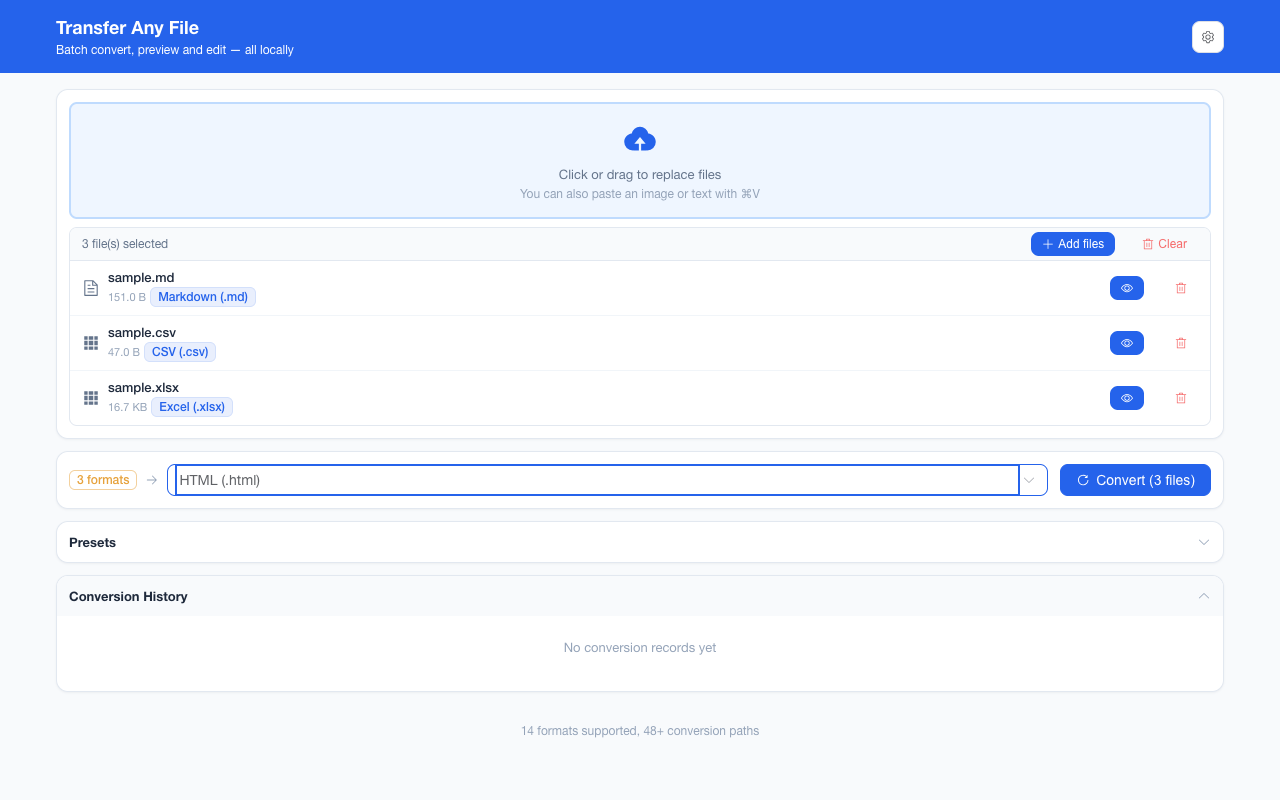
一次拖 40 个不同类型的文件。每个文件各自解析到自己的最短路径;目标格式下拉框只列出对批次内全部文件都可达的格式,上限 200 个。 Drop 40 files of different types. Each resolves its own route to the shared target, and only formats reachable from every selected file are offered — up to 200 files per batch.

自动多步链路Automatic multi-step chains

不存在 Markdown 直达 PDF 的转换器,但工作台会用广度优先搜索求出最短链路并逐步执行,Markdown → PDF 实际按 Markdown → HTML → PDF 两步跑完,路径在选择框下方展示。 There is no Markdown-to-PDF converter, but the workbench finds the shortest chain with BFS and runs it step by step: Markdown → PDF executes as Markdown → HTML → PDF, with the route printed under the picker.

失败隔离、可取消、可撤销Failure isolation, cancel, undo

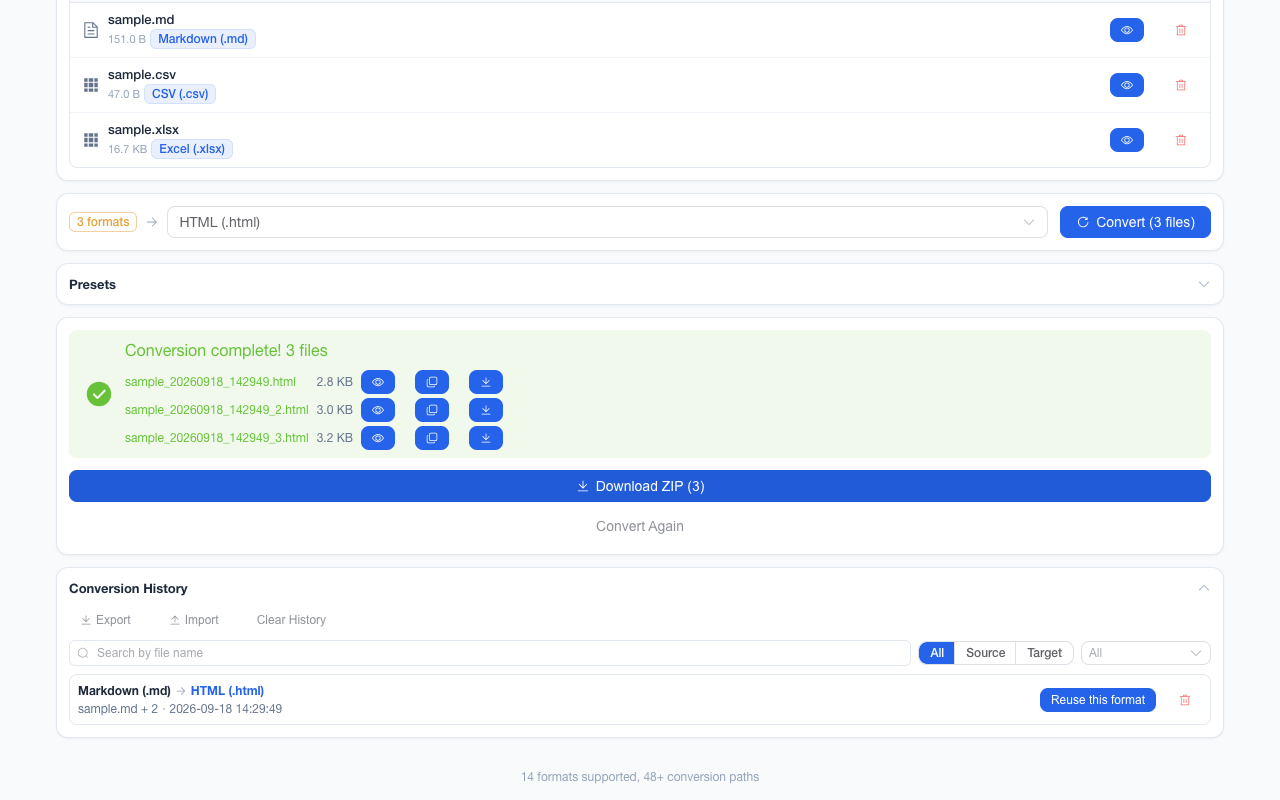
一个读不了的文件不会阻断其余部分:失败按文件列出原因,还能展开看到它尝试的转换路径与出错的那一步,并一键复制诊断信息。长批次能随时取消,已完成的结果保留;上一轮结果误操作可一键撤销。 One unreadable file never blocks the rest — failures are listed per file with the reason, expand to the route each one tried and the step that broke, and copy that diagnostic with one click. A long batch is cancellable with finished results kept, and the last result can be undone.

对比、同步滚动、可拖分隔条Side-by-side, sync scroll, draggable divider

源文件与结果左右并排,分隔条可拖拽,滚动可同步;也能切到仅原文件 / 仅结果,或用 1 / 2 / 3 直接切换、 / 微调分隔条。渲染视图与源码视图一键切换,结果可直接复制;分隔条位置会被记住。 Source and result sit side by side with a draggable divider and synchronised scrolling; you can also switch to source-only or result-only, with 1 / 2 / 3 jumping between the modes and / nudging the divider. Rendered and source views toggle in one click, results copy to the clipboard, and the divider position is remembered.

下载前可编辑结果Edit the result before download

文本类结果(Markdown / HTML / TXT / JSON / CSV)能在对比视图里直接改,改完再下载,不必回到编辑器绕一圈。 Text results (Markdown, HTML, TXT, JSON, CSV) are editable inline in the comparison view, so a small fix never sends you back to another editor.

粘贴与压缩包入口Paste and archive intake

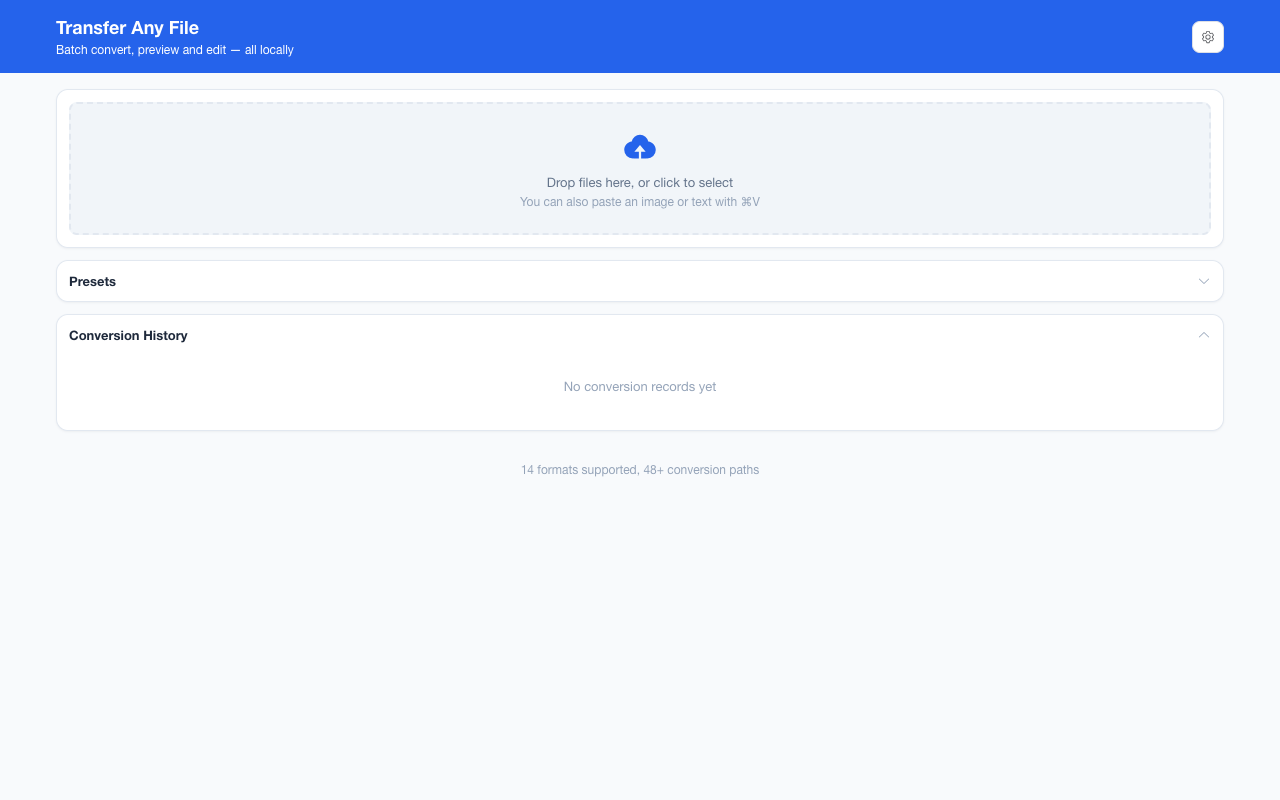
Ctrl/+V 直接粘剪贴板里的图片或文本开始转换;文件也能丢到工作台任意位置,不必命中上传区;拖一个 .zip 进来会自动展开,把其中支持的条目加入批次。 Ctrl/+V converts a clipboard image or text block; files can be dropped anywhere on the workbench rather than only on the upload zone; and dropping a .zip expands it and adds every supported entry to the batch.

一个 ZIP,压缩策略按条目定One ZIP, per-entry compression

文本结果 deflate 后约小 10 倍;PNG / PDF / XLSX 这类已压好的产物直接 stored,不浪费 CPU。单文件则直接下载,不会强塞进 ZIP。 Text results deflate to roughly a tenth of the size; already-compressed outputs such as PNG, PDF and XLSX are stored as-is so no CPU is wasted. A single result downloads on its own rather than being forced into an archive.

图片输出参数Image output parameters

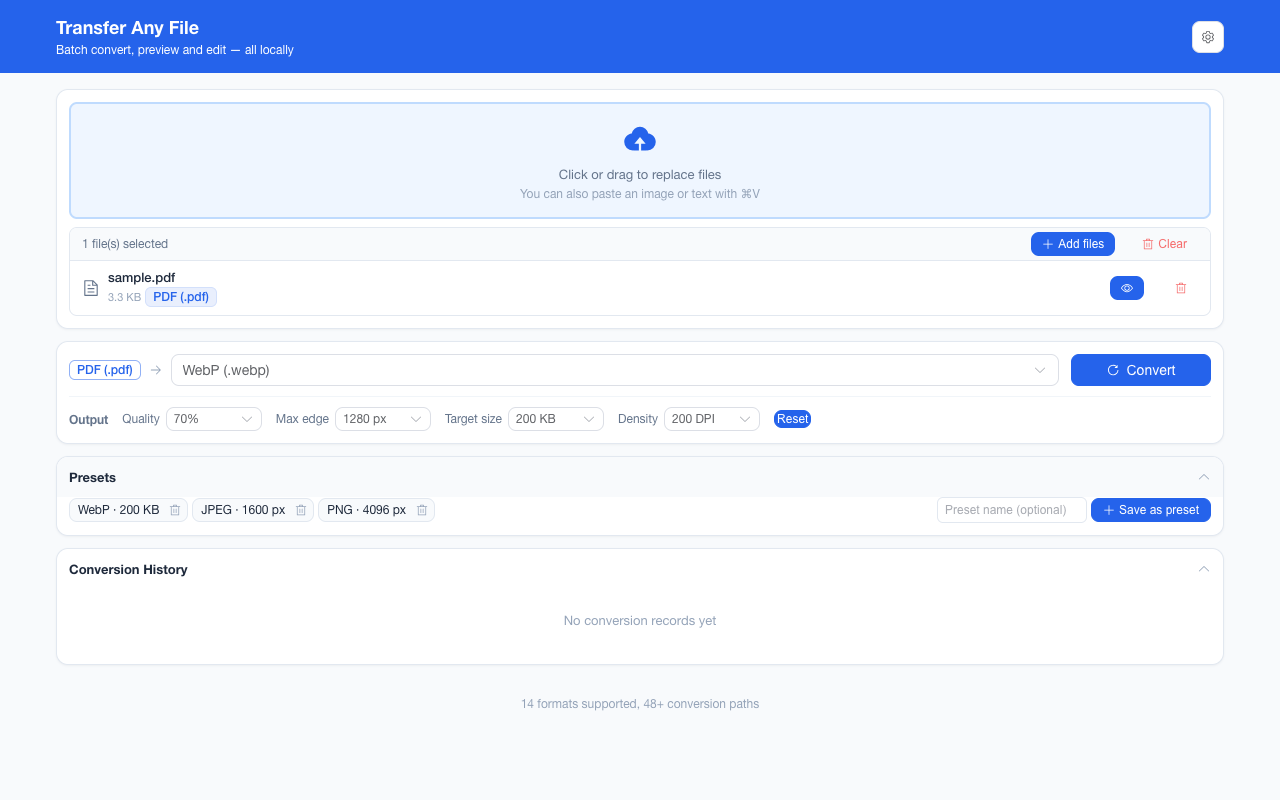
目标是 PNG / JPEG / WebP 时,面板给出真正的编码器旋钮:质量 40–90%、最长边 800–4096 px、目标体积 20 KB–2 MB(质量与目标体积仅 JPEG / WebP),源里有 PDF 时还能选 96–300 DPI。目标体积靠质量阶梯反复编码逼近。每一项默认「不动」,一键恢复默认,参数本身持久化到本机。 A PNG / JPEG / WebP target exposes the real encoder knobs: quality 40–90% and a target size of 20 KB–2 MB for JPEG and WebP, longest edge 800–4096 px for all three, plus 96–300 DPI when a PDF is in the batch. The size ceiling is met by walking a quality ladder. Every knob starts untouched, one control restores the defaults, and the settings persist on your machine.

转换预设Conversion presets

把「目标格式 + 输出参数」存成一个命名快捷方式(最多 12 个),下次一键恢复。预设不绑定源格式,所以「1280 px 的 PNG」对来自 PDF、HTML 还是 SVG 的批次都成立;工作台里没有文件时它会先被记住,等文件一落地就自动应用。存下来的只有格式与参数,不含任何文件内容。 Save a target format together with its output parameters as a named shortcut — up to 12 of them — and restore the whole setup in one click. A preset is not bound to a source format, so "PNG at 1280 px" works for a batch arriving from PDF, HTML or SVG alike; with no files loaded yet it is remembered and applied the moment the next batch lands. Only the format and its parameters are stored, never file content.

只存元数据的历史History with metadata only

保留最近 50 次转换的文件名、格式与体积——不含文件内容。可按文件名搜索、按源/目标筛选、一键复用格式组合,也能导出 JSON 到新设备导入。最近用过的目标格式(最多 6 个)还会以下拉顶部的「最近使用」分组呈现,同样只记格式名。 Keeps the last 50 conversions as names, formats and sizes — never file contents. Search by file name, filter by source or target, reuse a combination in one click, export as JSON and import it on another device. The formats you convert to most often (up to 6) also lead the target dropdown as a "recently used" group — format names only, again.

中文表格不乱码Chinese spreadsheets stay readable

CSV 读取先试 UTF-8,失败再依次回退 GB18030 与 GBK;写出时带 BOM。国内系统导出的老编码表格能打开,转出的 CSV 在 Excel 里也不会变方块。 CSV reads UTF-8 with an automatic GB18030 → GBK fallback and writes UTF-8 with BOM, so legacy-encoded exports open correctly and converted CSVs land in Excel without mojibake.

不可用就写清原因Unusable targets say why

选不了的目标不是静默消失,而是置灰并给出具体原因:与源格式相同、需 OCR、PDF 无法可靠转为结构化数据等——避免点了转换才发现不行。图上有 143 个可达组合,其中 27 个属于这类语义无效,被屏蔽后下拉实际提供 116 个。 Disabled targets are greyed out with a specific reason rather than silently missing: same as source, needs OCR, or PDF cannot be reliably turned into structured data. Of the 143 combinations reachable in the graph, 27 are semantically invalid, so the picker offers 116.

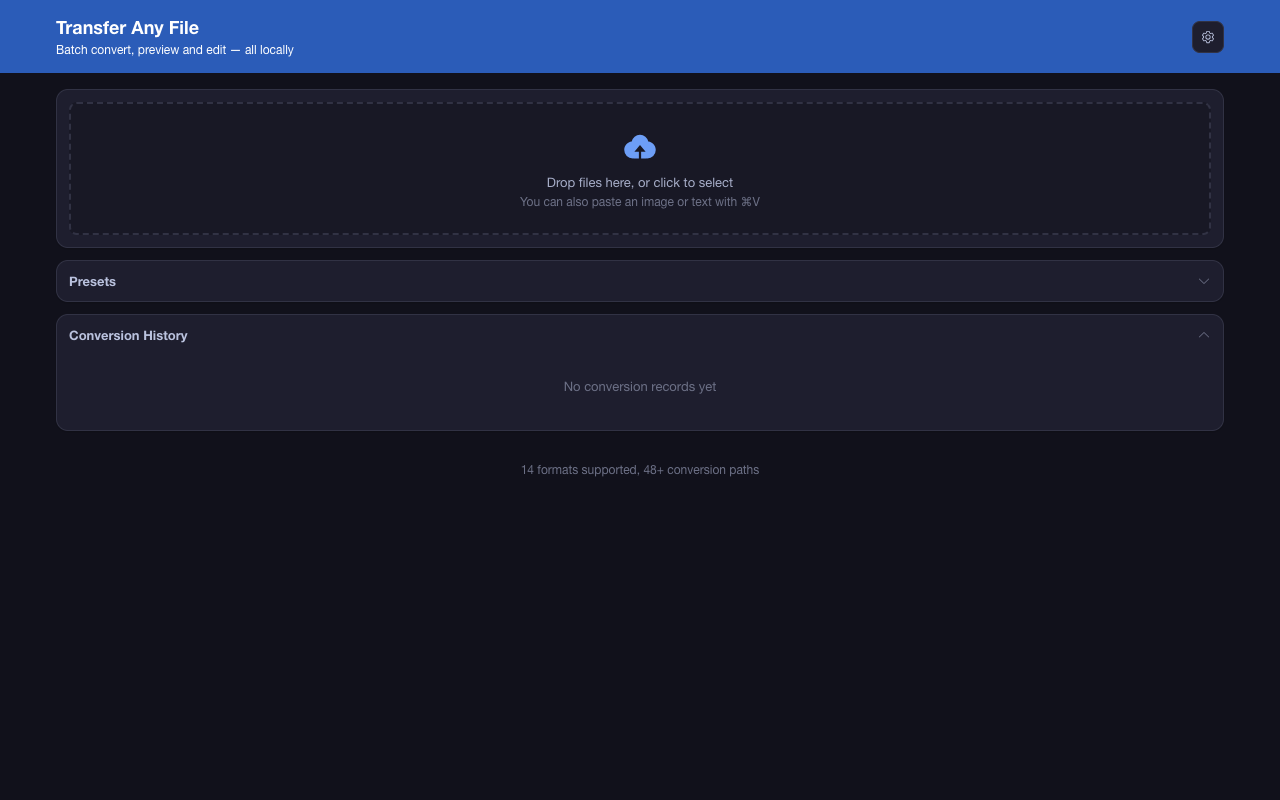
6 种主题色 × 浅色/深色/系统6 accent colours × light / dark / system

主题在页面挂载前应用,不会闪白。语言、主题、快捷键、大批次确认与后台完成通知的开关,以及历史卡片的折叠状态都记在本地;开始转换的 Ctrl/+Enter 可改绑。 The theme is applied before mount, so there is no flash of the wrong palette. Language, theme, shortcut, the large-batch confirmation and completion-notification switches, and the collapsed state of the history card all persist locally; the Ctrl/+Enter convert shortcut is rebindable.

键盘可达与无障碍Keyboard and accessibility

跳转主内容链接、可见焦点环、prefers-reduced-motion 降级。端到端套件在 6 主题 × 浅/深共 12 种组合下逐项实测三组承担对比度契约的颜色:顶栏品牌文字对顶栏背景 ≥ 4.5:1,主按钮文字在常态 / 悬停 / 按下三种状态下均 ≥ 4.5:1(读数取自确实可点击的按钮,文本规则豁免禁用控件),焦点环对卡片背景 ≥ 3:1。 Skip link to the main content, visible focus rings and a prefers-reduced-motion fallback. The end-to-end suite measures the three colour pairs that carry the contrast contract — brand text on the topbar at 4.5:1 or better, the primary button's label in its rest, hover and pressed states at 4.5:1 or better (read off the enabled button, because the text rule exempts disabled controls), focus ring on a card at 3:1 or better — in all 12 theme × light/dark combinations.

界面Interface

工作台长什么样 The workbench, screen by screen

下列截图由 pnpm assets:capture 直接从构建产物驱动浏览器生成,因此它们不会与实际界面漂移。 Every screenshot below is captured from the built bundle by pnpm assets:capture, so it cannot drift from what the extension actually shows.

安装与使用Install & use

安装四步,日常四步 Four steps to install, four steps a day

尚未上架 Chrome 应用商店,所以目前的安装方式是「加载未打包的扩展」:需要 Node.js 20.12 或更新版本与 pnpm。上架后本块会同步更新。 It is not on the Chrome Web Store yet, so today it is a load-unpacked install: Node.js 20.12 or later and pnpm. This section will be updated once it is listed.

上架后将在 Chrome 应用商店提供一键安装,商店页面链接:CWS 商店页面 Once published, one-click install will be available via Chrome Web Store: CWS store page

01

装工具链Install the toolchain

Node.js 20.12 及以上,包管理器固定为 pnpm Node.js 20.12 or later, plus pnpm (the repo pins it via packageManager).

02

克隆并构建Clone and build

下方命令产出 .output/chrome-mv3;依赖装好后,构建本身只需几秒。 The commands below produce .output/chrome-mv3. Once dependencies are installed, the build itself takes a few seconds.

03

加载扩展Load it

打开 chrome://extensions,右上角开启「开发者模式」,点「加载未打包的扩展」,选上一步的 .output/chrome-mv3 Open chrome://extensions, switch on Developer mode, click Load unpacked and choose the .output/chrome-mv3 folder.

04

点图标Click the icon

工作台在新标签页打开。它没有弹窗、没有侧边栏——所有事都在那一页里完成。 The workbench opens in a new tab. There is no popup and no side panel — everything happens on that page.

git clone https://github.com/liaolongdong/transfer-any-file.git
cd transfer-any-file
pnpm install
pnpm build

平常一天的四步 The daily flow, four steps

1

拖入、选择或粘贴文件(也能拖一个 ZIP 进来自动展开)。 Drop, pick or paste files — a dropped ZIP is expanded for you.

2

选目标格式,不可达的会自动置灰并写出原因。 Choose the target format — unreachable ones are greyed out with a reason.

3

按「开始转换」或 Ctrl/+Enter,多步链路自动串跑。 Press Convert (or Ctrl/+Enter); multi-step chains run themselves.

4

预览、必要时改一下,然后下载单文件或整批 ZIP。 Preview, edit if needed, then download one file or the whole batch as a ZIP.

横向对比Comparison

本地扩展 vs 在线转换网站 vs 命令行工具 Local extension vs online converter vs command-line tool

行按本扩展那一列排序:前九行是 ✅ ——多数是对在线网站的净胜,与命令行工具互有胜负;后四行是它明确让位给在线服务或命令行的维度。诚实的权衡:在线服务能覆盖更多格式(视频、音频、电子书、CAD),因为它们能跑重型服务器;命令行工具能处理成百上千个文件且可编排;在浏览器能解码的格式上,本地扩展胜在隐私、限制与开箱即用。三者不是替代关系。 Rows are ordered by our own column: the first nine are ✅ — outright wins over online services in most cases, a split against a CLI — and the last four are where an online service or a command-line tool plainly does better. An honest trade-off: online services cover far more formats (video, audio, e-books, CAD) because they can run heavy servers; command-line tools handle thousands of files and script well. Where a browser can decode the format, a local extension wins on privacy, limits and convenience. The three are not substitutes.

基于各类型工具的共同行为总结,而非某个具体厂商;Pandoc / ImageMagick 作为命令行工具的代表列出。 Based on the typical behaviour of each class of tool rather than one specific vendor; Pandoc / ImageMagick stand in for the command-line column.
维度Dimension Transfer Any File 在线转换网站Online converter 命令行工具CLI tool
文件离开设备Your file leaves the device 从不Never 总是(机制如此)Always (that is the mechanism) 从不Never
离线 / 飞行可用Works offline / on a plane Yes No Yes
价格与账号Price and account 免费,无需注册,无付费版Free, no sign-up, no paid tier 免费额度,订阅才能解除限制Free quota, subscription lifts the limits 通常免费Usually free
预览与转换后微调Preview and tweak the result 内置对比视图 + 内联编辑Built-in comparison view and inline editing 通常只有缩略图Usually a thumbnail at best None
混合格式批次Batch of mixed formats 是,整批共用一个目标Yes, one target for the whole batch 通常付费或排队Usually paid or queue-bound 是,且可编排Yes, and scriptable
免费额度限制Free-tier limits 单文件 100 MB、单批 200 个100 MB per file, 200 files per batch 每日配额、体积上限、水印Daily quotas, size caps, watermarks None
使用门槛Learning curve 拖文件、选格式Drop a file, pick a format 上传、等下载Upload, wait, download 需记参数与格式名Flags and format names
源码Source code 开源(MIT)Open source (MIT) 闭源Closed 开源Open source
中文界面与编码Chinese interface and encoding 中英双语界面;CSV 输出带 BOM,Excel 打开不乱码Bilingual UI; CSV written with a BOM so Excel opens it cleanly 视具体服务而定Depends on the service 编码需自行处理Encoding is left to you
安装成本Setup cost 构建一次,加载未打包目录Build once, load the unpacked folder 零,打开链接即可None, it is a web page 需包管理器与 PATHPackage manager and PATH
格式广度Format breadth 14 种文档 / 数据 / 图片14 document / data / image formats 数百种,含视频音频Hundreds, including video and audio Pandoc 40+ 文档格式,ImageMagick 数百图像格式Pandoc 40+ document formats, ImageMagick hundreds of image formats
OCR / 复杂排版修复OCR, complex PDF layout repair 未内置Not bundled 常见Commonly offered 需额外装 Tesseract 等Requires a separate Tesseract install
可编排 / CIScriptable / CI 无命令行入口No CLI entry point 无官方 API(有则付费)No official API (paid when offered) 天生为脚本设计Designed for it
隐私与权限Privacy & permissions

“不上传”不是口号,是可验证的结构 "No uploads" is a verifiable structure, not a claim

扩展只申请一项权限:storage,用于历史记录与偏好设置。它不声明任何 host_permissions,自身代码中也不发起任何网络调用,因此不存在能把文件发出去的代码路径。完整政策:隐私政策(中英双语)。 The extension requests exactly one permission, storage, for history and preferences. It declares no host_permissions and issues no network call of its own, so there is no path by which a file could be transmitted. Full text: privacy policy (bilingual).

你能自己核对的四件事Four things you can check yourself

  • .output/chrome-mv3/manifest.jsonpermissions 只有 ["storage"],无 host_permissions 字段。 In .output/chrome-mv3/manifest.json, permissions is just ["storage"] and there is no host_permissions key.
  • 源码(entrypoints/components/composables/utils/)里没有 fetchXMLHttpRequestWebSocketEventSourcesendBeacon 调用。 The source in entrypoints/, components/, composables/ and utils/ contains no fetch, XMLHttpRequest, WebSocket, EventSource or sendBeacon call.
  • 关掉 Wi-Fi 再转一个文件:行为完全一致,因为本来就无需网络。 Turn off Wi-Fi and convert a file: behaviour is identical, because none is required.
  • 历史面板可导出 JSON,看到存的就是文件名、格式与体积——没有内容字段。 Export history as JSON and read it: names, formats and sizes only — there is no content field.
数据存在哪、会不会传输。 What is kept, where it lives, and whether it is transmitted.
数据Data 存放位置Where it lives 是否传输Transmitted?
你的文件Your files 仅转换期间存在于此标签页内存Memory of the extension tab, only while converting 从不Never
历史(名称、格式、体积)History (names, formats, sizes) chrome.storage.local 从不Never
偏好(主题、语言、快捷键)Preferences (theme, language, shortcuts) chrome.storage.local 从不Never
分析 / 遥测 / 广告Analytics / telemetry / ads 未实现Not implemented 不适用n/a
常见问题FAQ

使用前后你可能会问的 Questions people ask before and after installing

每一条都是展开即读的普通文本(不靠 JavaScript 注入),所以禁用脚本、屏幕阅读器与搜索引擎都能读到同样内容。 Every answer is plain markup that is already in the document — nothing is injected by JavaScript, so no-script readers, screen readers and search engines all read the same text.

安全与隐私Security & privacy

Transfer Any File 会把我的文件上传到服务器吗? Does Transfer Any File upload my files?
不会。所有转换器都是打包进扩展的 JavaScript,清单只声明 storage 权限且没有 host_permissionsentrypoints/components/composables/utils/ 下的第一方源码不存在 fetchXMLHttpRequestWebSocketEventSourcesendBeacon 调用,CI 会在每次推送时重新校验这一断言。打包进来的第三方转换库保留了一些从不被调用的请求路径,但没有 host 权限时浏览器会直接拦下这些调用。没有可供上传的服务器,关闭网络也能正常使用。 No. Every converter is JavaScript bundled into the extension, the manifest declares only the storage permission with no host_permissions, and the first-party source in entrypoints/, components/, composables/ and utils/ contains no fetch, XMLHttpRequest, WebSocket, EventSource or sendBeacon call — CI re-checks that assertion on every push. Bundled third-party conversion libraries keep some request paths they never call, but with no host permission the browser blocks those calls outright. There is no server to upload to, and the extension works with networking disabled.
它只要求一项权限,为什么? Why does it ask for only one permission?
因为只需要这些。历史与偏好需要 storage;转换本身靠文件选择器与页面内的 File/Blob API 完成,不需要标签页访问、不需要后台脚本、也不需要任何主机权限。没用的权限一律不申请。 Because nothing else is needed. History and preferences need storage; conversion itself uses the file picker and the in-page File/Blob APIs, so it needs no tab access, no background scripts and no host permissions. Unused permissions are simply not requested.
历史记录里到底存了什么? What exactly does the history store?
最近 50 次成功转换的元数据:文件名、源格式、目标格式、体积与时间。不存文件内容,也不存转换结果。写入是尽力而为的:保存失败不会阻断转换流程;你可以搜索、筛选、复用,或导出 JSON 自行查看与删除。 Metadata for the last 50 successful conversions: file name, source format, target format, size and timestamp. No file contents and no results are stored. Writing history is best-effort — a storage failure never blocks a conversion. You can search, filter, reuse, or export it as JSON to read and delete it yourself.

格式与能力Formats & capability

它能转换哪些文件格式? Which file formats can it convert?
三大类共 14 种:文档(Markdown、HTML、Word .docx、PDF、TXT)、数据(CSV、Excel .xlsx、JSON)与图片(PNG、JPEG、WebP、BMP、GIF、SVG)。其中 11 种可写出;注册表里有 48 条直接路径,经广度优先搜索可到达 143 个组合,格式下拉实际提供 116 个——另外 27 个(图片→文本/数据、PDF→数据)会置灰并说明原因。上面的格式表逐行列出了每种源格式的可达与可选目标数。 Fourteen formats across three families: documents (Markdown, HTML, Word .docx, PDF, TXT), data (CSV, Excel .xlsx, JSON) and images (PNG, JPEG, WebP, BMP, GIF, SVG). Eleven of them can be written; the registry holds 48 direct routes and BFS over that graph makes 143 combinations reachable. The picker offers 116 of them — the other 27 (image→text/data and PDF→data) are greyed out with a reason. The format table above lists the reachable and selectable counts for every source format row by row.
为什么 Markdown 转 PDF 会显示两步? Why does Markdown to PDF show two steps?
因为不存在 Markdown 直达 PDF 的转换器。每种转换是图上的一条边,工作台用广度优先搜索求最短链路并逐步执行,所以 Markdown → PDF 实际按 Markdown → HTML → PDF 两步完成。路径会显示在选择框下方,不需要你手工串联;经过新格式的路径会自动被发现,无需改代码。 Because there is no Markdown-to-PDF converter. Each conversion is an edge in a graph, and the workbench finds the shortest chain with breadth-first search and runs it step by step, so Markdown → PDF executes as Markdown → HTML → PDF. The route is printed under the picker; you never chain it by hand, and routes through a newly added format are discovered automatically without code changes.
能把 PDF 转成可编辑的 Word 吗? Can it convert a PDF into an editable Word document?
不能无损。PDF 输入只提取文本,排版与内嵌图片不保留;反过来,PDF 输出是逐页渲染的图片,文字不可选定。Word 与 Excel 都以 HTML 作为中心格式中转。如果你需要保留排版的 PDF 互转,请选用专业桌面工具或在线服务。 Not losslessly. PDF input extracts text only, dropping layout and embedded images; conversely PDF output is rendered page by page as images, so its text is not selectable. Word and Excel convert through HTML as the hub format. If you need layout-faithful PDF conversion, reach for a dedicated desktop tool or an online service.
为什么图片不能转成 TXT 或 CSV? Why can't I convert an image to text or CSV?
那需要 OCR。内置 OCR 模型会多出几十 MB 体量并引入模型下载,与离线承诺冲突,因此没做。这些目标在格式选择器里直接置灰并写明原因,而不是你点了转换才发现不行。 That requires OCR. Bundling an OCR model would add tens of megabytes and a model download, which conflicts with the offline guarantee, so it is not included. Those targets are greyed out in the format picker with the reason shown, rather than failing after you press Convert.
多个不同格式的文件能一次转换吗? Can I convert several different formats in one run?
可以,一次最多 200 个文件。每个文件各自解析自己的转换路径并逐步执行,所以 Markdown、CSV 与 Excel 混在一起投进来、统一转成 HTML 是一条动作。目标格式下拉框只提供对批次内全部文件都可达的格式,因此不会出现选了之后一半文件转不了的组合。 Yes — up to 200 files in one run. Each file resolves and walks its own route step by step, so dropping Markdown, CSV and Excel together and converting them all to HTML is a single action. The target picker lists only formats reachable from every file in the batch, so you can never pick a target that half the batch cannot reach.

使用与限制Usage & limits

单文件与批次的大小上限是多少? What are the file size and batch limits?
单文件最大 100 MB(超过 20 MB 时界面会提醒可能较慢),单批最多 200 个文件。超过 5 个文件或总计 20 MB 时,会先弹一次确认;这个开关可在偏好设置里关掉。 A single file up to 100 MB is accepted (the UI warns above 20 MB), and a batch is capped at 200 files. Batches larger than 5 files or 20 MB in total ask for confirmation first, and you can switch that prompt off in Preferences.
多个工作表的 Excel 转 CSV 会怎样? What happens when a multi-sheet Excel file becomes CSV?
CSV 只能装一个表,所以每个工作表各出一个 CSV,结果以 ZIP 交付。同理,多页 PDF 转图片时逐页出图并打包 ZIP;GIF 取首帧,SVG 会先被展平再栅格化。 CSV holds one sheet, so each worksheet becomes its own CSV and the result arrives as a ZIP. For the same reason a multi-page PDF turned into images yields one file per page inside a ZIP; a GIF uses its first frame, and an SVG is flattened before rasterising.
为什么某个文件转换失败,整批却没停? Why did one file fail without stopping the batch?
故意的。每个文件独立解析路径并执行,失败不传播;失败清单会逐文件列出原因,已成功的文件照常可预览与下载。长批次中途可取消,已完成的保留,最近一轮结果还能撤销。 On purpose. Each file resolves and runs its own path in isolation, so a failure never propagates; failures are listed per file with reasons while successful files stay previewable and downloadable. A long batch can be cancelled midway, finished results are kept, and the most recent result can be undone.
中文 CSV 在 Excel 里打开乱码吗? Does a Chinese CSV open correctly in Excel?
两个方向都处理了:读取时先试 UTF-8,失败再依次回退 GB18030 与 GBK(GB18030 覆盖 GBK 表示不了的字符,GBK 兜住两者唯一分歧的那一个字节),所以国内系统导出的表格能正常读入;写出时带 BOM,所以转出的 CSV 双击进 Excel 不会变方块。 Both directions are handled: reading tries UTF-8 first and then falls back to GB18030 and GBK in order — GB18030 covers characters GBK cannot represent, while GBK stays last for the single byte the two disagree on — so exports from domestic Chinese software open correctly; writing emits a BOM, so a converted CSV opens in Excel without mojibake.
能把图片压到指定体积,或者保存常用的转换组合吗? Can I shrink an image to a target size, or save a conversion setup for reuse?
都能。目标为 PNG / JPEG / WebP 时会多出输出参数:质量 40–90%、最长边 800–4096 px、目标体积 20 KB–2 MB(质量与目标体积仅 JPEG / WebP,后者靠质量阶梯反复编码逼近),批次里有 PDF 时还能选 96–300 DPI。每一项默认「不动」,此时就是浏览器的默认编码行为。调好的「目标格式 + 参数」可以存成最多 12 个命名预设,一键恢复;预设不绑定源格式,所以同一张「1280 px 的 PNG」对来自 PDF、HTML 或 SVG 的批次都成立。参数与预设只写在扩展的本地存储里,不产生任何网络请求。 Both. A PNG / JPEG / WebP target gains output parameters: quality 40–90%, longest edge 800–4096 px, and a target size of 20 KB–2 MB (quality and target size are JPEG and WebP only, the size met by walking a quality ladder), plus 96–300 DPI when a PDF is in the batch. Every knob starts untouched, which is the browser's default encoding behaviour. A tuned format-and-parameters pair can be saved as one of up to 12 named presets and restored in one click; a preset is not bound to a source format, so the same "PNG at 1280 px" chip works for a batch arriving from PDF, HTML or SVG. Parameters and presets live in the extension's local storage and issue no network request.

安装与兼容Install & compatibility

还没上架商店,现在怎么安装? It is not on the Store yet — how do I install it today?
从源码构建:用 Node.js 20.12+ 与 pnpm 执行 pnpm installpnpm build,然后打开 chrome://extensions、开启开发者模式、点「加载未打包的扩展」并选择 .output/chrome-mv3。点击工具栏图标即在新标签页打开工作台。 Build from source with Node.js 20.12 or later and pnpm: run pnpm install then pnpm build, open chrome://extensions, enable Developer mode, click Load unpacked and select the .output/chrome-mv3 folder. Clicking the toolbar icon opens the workbench in a new tab.
它在 Edge / Firefox 上能跑吗? Does it work in Edge or Firefox?
构建目标是 Chrome Manifest V3,所以在 Chrome 与其他 Chromium 浏览器(如 Edge)上可跑。Firefox 目前不是支持目标——尽管除了标准的 storageaction 之外,扩展并未使用 Chrome 专有 API。 The build targets Chrome Manifest V3, so it runs in Chrome and other Chromium browsers such as Edge. Firefox is not a supported target today, although beyond the standard storage and action APIs the extension uses no Chrome-only ones.
手机上能用吗? Can I use it on mobile?
不能。Chrome 在 Android 上不支持扩展,iOS 上的 Chrome 也只支持少数几种。它也不提供网页版——网页版意味着文件要上传,而那就是这个项目存在的理由本身。 No. Chrome on Android does not support extensions, and Chrome on iOS supports only a handful. There is no web version either — a web version would mean uploading files, which is precisely what this project exists to avoid.
我能要求加一种格式吗? Can I ask for a new format?
可以,开 issue 提需求即可。新增一个转换器就是一个实现 Converter 接口的模块(from / to / convert(blob),重型依赖内部动态引入);只要浏览器能解码,它就能进入图,所有经过它的新链路会自动由 BFS 发现。若涉及新的输入格式,还需扩展枚举、格式元数据、后缀与 MIME 映射,并补中英双语文案。 Yes — open an issue. Adding a converter means one module implementing the Converter interface (from / to / convert(blob), with heavy dependencies dynamically imported); as long as a browser can decode it, it joins the graph and every new route through it is discovered by BFS automatically. A genuinely new input format also extends the enum, the format metadata, the extension and MIME maps, plus the Chinese and English copy.
它免费吗?有没有付费版? Is it free, and is there a paid version?
免费,而且没有付费版。项目以 MIT 协议开源,没有账号、没有订阅、没有广告,也没有任何被锁在付费墙之后的功能。它同样没有可以上报使用量的代码路径——第一方源码中不存在任何网络调用。 It is free, with no paid tier. The project is open source under the MIT licence: no account, no subscription, no advertising, and no feature gated behind anything. There is also no code path that could report usage — first-party source contains no network call at all.
技术细节Technical details

它是怎么构建与验证的 How it is built and verified

技术栈Built with

WXT · Vue 3 · TypeScript · Element Plus · Vite。重型转换库(marked、turndown、mammoth、pdf.js、SheetJS、jsPDF、html-to-image、DOMPurify、fflate)按转换器动态引入,首屏包体保持精简;Element Plus 按需引入,不整包导入。 WXT · Vue 3 · TypeScript · Element Plus · Vite. Heavy conversion libraries (marked, turndown, mammoth, pdf.js, SheetJS, jsPDF, html-to-image, DOMPurify, fflate) are dynamically imported per converter so the first paint stays small; Element Plus is tree-shaken rather than imported whole.

运行要求Requirements

Google Chrome 88 及以上,或任何支持 Manifest V3 的 Chromium 浏览器(含 Edge)。从源码构建需 Node.js ≥ 20.12 与 pnpm。 Google Chrome 88 or later, or any Chromium browser that supports Manifest V3 (Edge included). Building from source needs Node.js ≥ 20.12 and pnpm.

测试覆盖Verified by tests

一套 Playwright 端到端套件加载真正的构建产物,用仓库内的夹具跑完各类转换场景、批量与 ZIP、取消与改键、预览与编辑、图片输出参数与转换预设、历史与偏好,共 208 项断言全部通过(1.0.0 之后的未发布构建,2026-09-14 实测);另在 6 主题 × 浅/深共 12 种组合下逐项校验三组对比度:顶栏文字、主按钮文字(常态 / 悬停 / 按下)与焦点环。CI 每次推送跑 lint + build + e2e。 A Playwright end-to-end suite drives the actual build output over the repository fixtures — every conversion scenario, batching and ZIP handling, cancellation and shortcut rebinding, preview and editing, image output parameters and conversion presets, history and preferences — with 208/208 assertions passing (the unreleased build after 1.0.0, measured 2026-09-14). It also checks three contrast pairs — topbar text, the primary button's label in its rest, hover and pressed states, and the focus ring — in all 12 theme × light/dark combinations. CI runs lint, build and e2e on every push.

不可信输入的处理Untrusted input handling

上传文件、剪贴板内容、ZIP 条目与存储数据均视为不可信输入:边界处校验类型、格式与体积;任何由用户文件生成的 HTML、SVG 与 Markdown 在渲染前都经 DOMPurify 净化,预览跑在沙箱化环境里。 Uploaded files, clipboard content, ZIP entries and stored data are all treated as untrusted: type, format and size are validated at the boundary, every HTML, SVG and Markdown produced from a user file is sanitised with DOMPurify before rendering, and previews run sandboxed.

版本 1.0.0 · 本页最后更新 2026-09-18。文中全部数字从代码取证:14 种格式来自 FileFormat 枚举,48 条路径与 143 个可达组合来自转换器注册表的邻接图,116 个可选组合是 143 减去 utils/core/conversion-policy.ts 置灰的 27 个,3.73 MB 来自 pnpm build 输出,权限与上限来自 manifest 与源码常量。截图与推广图由 pnpm assets:capture 从构建产物生成。 Version 1.0.0 · page last updated 2026-09-18. Every number on this page is taken from the code: 14 formats from the FileFormat enum, 48 routes and 143 reachable combinations from the converter registry's adjacency graph, and 116 selectable combinations — that is 143 minus the 27 pairs utils/core/conversion-policy.ts greys out. 3.73 MB comes from pnpm build output, permissions and limits from the manifest and source constants. Screenshots are generated from the built bundle by pnpm assets:capture.

同作者工具More by the author

同一位作者的另外两个本地优先扩展 Two more local-first extensions by the same author

三个扩展遵循同一套原则:开源、离线、数据不出本机。各自的产品页有演示与安装说明。 All three share the same principles: open source, offline, data stays on your machine. Each product page carries its own demo and install instructions.

账号密码管理助手Account Password Helper 主推Featured

为开发者与测试人员量身打造的 Chrome 密码管理扩展:按下 Ctrl+Shift+F 一键登录(填充+勾选+点击),精确域名匹配隔离 dev/test/staging/prod 多环境账号;内置 TOTP 两步验证、安全体检与密码生成器,所有数据本地 AES-256-GCM 加密,永远不离开你的电脑。 A Chrome password manager built for developers and testers: press Ctrl+Shift+F for one-click login (fill + check + submit), exact domain matching isolates dev/test/staging/prod accounts; TOTP two-factor, a security audit and a password generator are built in — all data encrypted locally with AES-256-GCM, never leaving your computer.

跨域代理助手Cross-origin Proxy

一款开源 Chrome 扩展(Manifest V3),把页面发出的 API 请求代理到另一个后端环境。重写 URL、请求头与响应,条件化 Mock、注入延迟、阻断请求、失败重试、转发 WebSocket——全部在浏览器里配置,数据只存在你的电脑上。 An open-source Chrome extension (Manifest V3) that proxies a page's API requests to another backend environment. Rewrite URLs, headers and responses, mock conditionally, inject delays, block requests, retry failures and forward WebSocket — all configured in the browser, with data stored only on your computer.

联系Contact

报问题、提格式、进交流群 Report a bug, request a format, join the group

四个渠道都通到同一个人。Issue 优先——群里得到的结论会回填到可检索的地方。 All four reach the same person. Issues first — whatever a chat concludes gets written back somewhere searchable.

  • 微信WeChat lld_1025,备注「taf」(Transfer Any File 的首字母)。问题反馈、格式需求、新版本试用都在群里。 : lld_1025, with the note "taf" (the initials of Transfer Any File). Bugs, format requests and pre-release testing all go through the group.
  • 邮箱Email 924902324@qq.com,与商店列表公开的联系邮箱是同一个地址。 : 924902324@qq.com — the same address published on the store listing.
  • IssueIssues 缺陷与格式需求,可检索,也最不容易被漏掉。 : Bugs & format requests, searchable and the least likely to be lost.
  • 关于扫码About scanning :页面底部那张码是添加个人微信的二维码,不是群码,所以不存在群码 7 天过期那一说。安全漏洞请走私密渠道,不要开公开 Issue。 : the code at the bottom of this page adds the author personally rather than a group chat, so it does not expire after seven days the way group codes do. Security issues go through a private channel, never a public issue.