
离线 · 无上传 · 浏览器本地完成Offline · no uploads · runs in the browser
PDF 转 JPEG——本地逐页栅格化,清晰度与质量可调PDF to JPEG locally — one page per image, density set
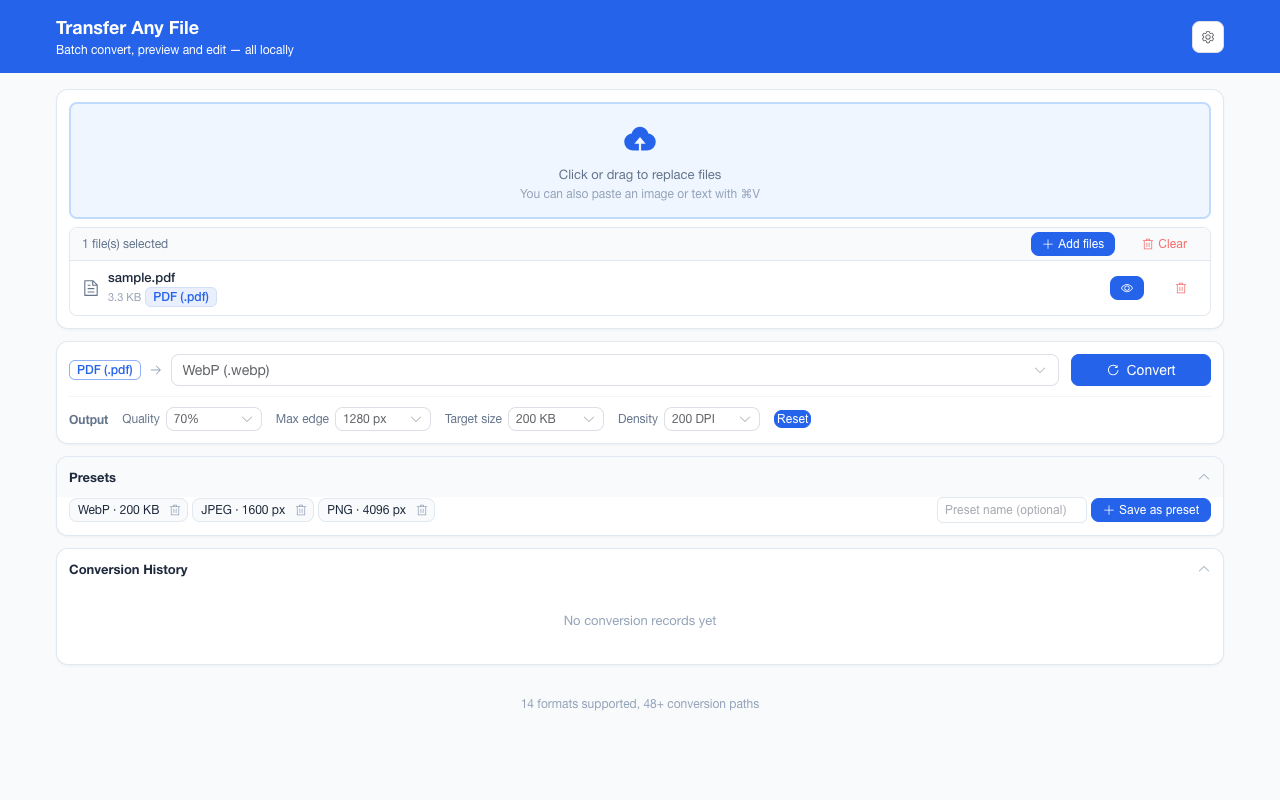
这条和 PDF → PNG 是同一套渲染,区别只在最后那一次编码:本项目给 JPEG 单独开了一条直接边,而不是"先出 PNG 再转 JPEG"。原因很实际——中间那次无损编码不改变任何像素,只会让每个页面多走一遍编码、并让 ZIP 里的扩展名变成 .png。栅格化是像素这条路唯一的真瓶颈,所以能省的步骤就省掉。This shares its whole render with PDF to PNG and differs only in the final encode: the extension gives JPEG its own direct edge rather than going PDF → PNG → JPEG. The reason is mundane — the lossless middle step changes no pixels, costs one extra encode per page, and would leave a ZIP full of .png files. Rasterising is the only real cost on a pixel route, so the wasted step is not taken.
这条链路怎么走How the route runs
PDFPDF JPEGJPEG
共 1 步,由扩展的路径搜索自动选出,中间产物不落盘。1 step, chosen by the extension's own path search; intermediate results never touch the disk.
会保留什么What carries over
- 每一页独立成一张图,按 PDF 里的页码命名(`page-3.jpg` 就是第 3 页,只转第 3 页时也一样)Each page becomes its own image, named by its page number in the document — `page-3.jpg` is page 3, and stays page 3 when you convert only that page
- 渲染密度四档可选:96 / 144 / 200 / 300 DPI,默认 144;数值直接换算成 pdf.js 的页面缩放(DPI ÷ 72)Render density comes as 96, 144, 200 or 300 DPI with 144 as the default, converted straight into pdf.js page scale (DPI ÷ 72)
- 页面自身的矢量图形、文字的字形、颜色与渐变都按矢量渲染路径栅格化,不是截屏那种二次放大Vector shapes, letterforms and colour or gradients on the page are rasterised along the vector render path, not magnified from a screenshot
- 质量档 40%–90% 与目标体积只在链路末尾这次编码生效,中间步骤不吃这两个参数Quality steps of 40%–90% and a target size act only at this final encode — intermediate steps ignore both
- 超过浏览器画布上限(8192 px 一边)的页面自动按缩放上限收敛,是缩到能渲染,不是裁掉A page that would exceed the browser canvas limit (8192 px on an edge) is scaled down to fit rather than cropped
如实说明的限制What it does not do
- 产物是像素:文字不再是可选中、可复制的字符,也不能再被搜索;想保留文字层就转 HTML 或纯文本The output is pixels: text is no longer selectable, copyable or searchable. Keep the text layer by going to HTML or plain text instead
- 透明不保留:渲染前每页先铺一层白,而这条路的三个图片终点(PNG / JPEG / WebP)都是这样画的,所以从 PDF 出来的图一律没有透明区域Transparency does not survive: each page is painted white before it renders, and all three image targets (PNG, JPEG, WebP) are drawn that way, so a picture out of a PDF has no transparent areas
- 有损编码:默认质量下小字号与细线会先变糊,需要清晰锐利请选 PNG 或提高 DPIIt is a lossy encode: at the default quality small type and hairlines soften first. Choose PNG, or raise the density, when sharpness is the requirement
- PDF 内嵌的表单控件、批注、书签与附件不进图像;页面里"看起来是图片"的部分会跟着渲染进去,但无法再按对象取出Form fields, annotations, bookmarks and embedded files are not part of the image; whatever looks like a picture on the page is rendered in, but cannot be lifted out as an object
- 扫描件在这里只是分辨率更高的图片,仍然提取不出文字——项目不含 OCRA scan comes back as a higher-resolution picture of a scan, still without extractable text — the extension ships no OCR
实操提示Working with it
- 只想转其中几页:在页面范围里填 1,3-5 这类写法。填了的范围在这份文档里一页都对不上时会直接报错,而不是"干脆全给你"To convert only some pages, type a range such as 1,3-5. A range that matches no page in this document fails outright instead of quietly handing you the whole file
- 单页 PDF 直接得到一张 .jpg;两页以上才打包成 ZIPA one-page PDF gives you one .jpg directly; two or more pages arrive inside a ZIP
- 一批最多 200 个文件、单个文件 100 MB 上限;页数多时可以先用页面范围试一页,确认清晰度再全量跑Up to 200 files per batch with a 100 MB per-file ceiling; on a long document, render a single page first to check sharpness before running the lot
常见问题Questions people actually ask
DPI 该设多少?What density should I pick?
给人看、发群里:默认 144 就够,它与这个转换在有了可调密度之前所用的缩放完全一致。要打印、要放大看清小字:选最高的 300。档位越高像素越多、ZIP 越大,而页面内容不会因此多出任何细节——它只是把同一套矢量画得更密。For reading and messaging: the default 144, which is exactly the scale this converter used before the option existed. For print or zooming into small type: the top step, 300. More density means more pixels and a bigger ZIP, not more detail in the page — it draws the same vectors at a finer grid.
为什么转出来全是白底?Why is the background white?
因为渲染前每页都会先铺一层白。这是这条转换自己的决定,不是渲染出错,而且 PNG 与 WebP 同样先铺白——换终点换不回透明,从 PDF 出来的三种图片都没有透明区域。Because each page is painted white before it renders. That is this converter’s own decision, not a rendering fault, and PNG and WebP are painted white as well — changing the target does not win alpha back, and none of the three image outputs from a PDF has transparent areas.
100 页的 PDF 一次跑完会怎样?What happens if I run a 100-page PDF?
会得到一个含 100 张图的 ZIP,而且这是这条路径最重的用法——每页一张画布、逐页编码。所以这一路支持中途取消:取消后已完成的部分不会伪装成"成功",界面会明确标成被中断。真嫌慢就用页面范围只跑要的页。You get a ZIP holding 100 images, which is the heaviest shape this route has: one canvas per page, encoded page by page. That is why it answers cancellation while it works, and a cancelled run is reported as interrupted rather than dressed up as success. If the wait is the problem, narrow the page range to the pages you need.
不需要账号,也不需要联网:装好扩展后点图标,在新标签页里打开工作台,文件从磁盘直接选。No account and no network: install the extension, click its icon, and the workbench opens in a new tab reading straight off your disk.
从 Chrome 应用商店安装Install from the Chrome Web Store 安装步骤Install steps GitHub 源码Source on GitHub
要把它压到指定体积?Need it under a target size? The 图片压缩工具image compressor可以在浏览器里重编码 PNG / JPEG / WebP。 re-encodes PNG / JPEG / WebP in the browser.