
工程手记 · 离线优先Engineering notes · local-first
我把「文件格式转换」做成了一个不联网的 Chrome 扩展 I turned file format conversion into a Chrome extension that never goes online
14 种格式、48 条注册路径、0 个网络请求。这篇文章讲清楚三件事:为什么在线转换器不适合处理你的敏感文件、浏览器为什么其实已经够用、以及把转换做成本地工具会撞上哪些真实的工程取舍。 14 formats, 48 direct routes, 0 network requests. Three things this post tries to make clear: why online converters are the wrong tool for sensitive files, why the browser is already a converter, and which engineering trade-offs you actually hit when you move the work local.
- 14 种格式14 formats Markdown / HTML / Word / PDF / TXT / CSV / Excel / JSON 与 6 种图片 Markdown, HTML, Word, PDF, TXT, CSV, Excel, JSON and 6 image formats
- 48 条注册路径48 direct routes 每个转换器只声明一条边,多步链路由图上 BFS 现算 Each converter declares one edge; multi-hop chains are computed from the graph
- 116 个可选组合116 selectable pairs 图上可达 143 个组合,另外 27 个语义无效、界面置灰并说明原因 143 combinations are reachable, 116 of them selectable — the other 27 are greyed out with a reason
- 1 项权限1 permission manifest 只要 storage,无 host 权限、无遥测、无账号 storage only — no host permissions, no telemetry, no account
一、「免费在线转换」免费的是什么1. What "free online conversion" is free of
把合同拖进任何一个「免费在线转换」网站,发生的事情大致是: Drag a contract into any "free online converter" and roughly this happens:
- 文件通过你的网络上行到对方服务器; your file uploads over your network to someone else's server;
- 服务器用 LibreOffice / FFmpeg / 商业 SDK 跑一次转换; that server runs the conversion with LibreOffice, FFmpeg or a commercial SDK;
- 结果回传给你,服务器留一份副本; the result comes back to you, and the server keeps a copy;
- 页面告诉你「文件将在 24 小时内删除」。 the page tells you "files are deleted within 24 hours".
第 4 步是承诺,不是机制。你无法验证它,也无法验证文件在那台服务器上的这段时间里还发生了什么——训练语料、格式统计、或者更糟。对企业来说这已经不是隐私问题而是合规问题:把含员工薪资的表格交给一个不知境的第三方,在多数数据保护框架下就已经构成「向第三方提供数据」。 Step 4 is a promise, not a mechanism. You cannot verify it, and you cannot verify what else happened while your file sat there — training corpora, format statistics, or something worse. For a company this stopped being a privacy question and became a compliance one: handing a payroll spreadsheet to an unknowable third party already counts as "providing data to a third party" under most data protection frameworks.
还有一层成本没人写在首页上:为了转换一个 3 MB 的文件,你先上传 3 MB、排队、再下载 3 MB。就我本地做过的那些事而言,网络往返占了绝大部分时间。 There is another cost nobody puts on the homepage. To convert one 3 MB file you upload 3 MB, queue, and download 3 MB. For the work I have moved local, the network round trip was the majority of the time.
所以我做了文件格式任意转换助手,前提只有一条:转换这件事,本来就不需要离开你的电脑。 So I built Transfer Any File on one premise: converting a file has no reason to leave your machine.
二、浏览器早就是一个转换器,只是没人用它转文件2. Your browser was already a converter — nobody used it for that
这不是取巧的说法。今天一个 Chromium 内核的浏览器里,已经躺着相当完整的编解码能力: This is not a clever framing. A Chromium browser today ships a genuinely complete codec stack:
- 图片:PNG / JPEG / WebP 原生编码,BMP / GIF / SVG 原生解码; Images: PNG, JPEG and WebP encode natively; BMP, GIF and SVG decode natively.
- DOM 与富文本:浏览器本身就是 HTML 引擎,解析和序列化都是内建的; DOM and rich text: the browser is an HTML engine — parsing and serialising are built in.
-
一堆成熟的纯前端库:
marked(Markdown → HTML)、turndown(HTML → Markdown)、mammoth(.docx → HTML)、pdf.js(PDF → 文本/图像)、SheetJS(.xlsx ⇄ CSV/JSON)、jsPDF与html-to-image(HTML → PDF/PNG)、fflate(ZIP)、DOMPurify(净化),再加上两个方向需要的file-saver和html-docx-js-typescript。 A set of mature browser-only libraries:marked(Markdown → HTML),turndown(HTML → Markdown),mammoth(.docx → HTML),pdf.js(PDF → text/images),SheetJS(.xlsx ⇄ CSV/JSON),jsPDFandhtml-to-image(HTML → PDF/PNG),fflate(ZIP) andDOMPurify(sanitising), plusfile-saverandhtml-docx-js-typescriptfor the two directions that need them.
把这些拼起来,就覆盖了日常工作真正绕不开的那 14 种格式:Markdown、HTML、Word (.docx)、PDF、TXT、CSV、Excel (.xlsx)、JSON、PNG、JPEG、WebP、BMP、GIF、SVG。 Put those together and you cover the 14 formats office work actually revolves around: Markdown, HTML, Word (.docx), PDF, TXT, CSV, Excel (.xlsx), JSON, PNG, JPEG, WebP, BMP, GIF, SVG.
边界同样清楚,而且我不会假装它不存在: The edges are just as clear, and I will not pretend they are not there:
- 没有 OCR。把截图变成文字需要一个模型,几十 MB 起步、还要联网下载——这直接违背「离线」这个前提。所以图片 → TXT/CSV/JSON/XLSX 在界面上是置灰、并在悬停时写明原因,而不是等你点了转换才报错。 No OCR. Turning a screenshot into text needs a model — tens of megabytes minimum, downloaded over the network, which contradicts the premise. So image → TXT/CSV/JSON/XLSX is greyed out in the picker, with the reason shown on hover, instead of failing after you click convert.
- PDF 输出是渲染出来的图片,转换得到的 PDF 不含文字层;PDF 输入只提取文本,版式和内嵌图片不保留。 PDF output is a rendered image. A converted PDF carries no text layer, and PDF input only extracts text — layout and embedded images are dropped.
- BMP / GIF / SVG 只能作为输入,因为浏览器压根没提供编码器。GIF 取首帧,SVG 走栅格化。 BMP, GIF and SVG are input-only, because the browser ships no encoder for them. GIF takes its first frame; SVG is rasterised.
- 视频、音频、电子书不在射程内。 Video, audio and ebooks are out of range.
一个诚实的工具,应该先把它不能干什么讲清楚。每个配对的「不做什么」都单独写在页面上。 An honest tool tells you what it cannot do first — each pair has its own page spelling out what it does not do.
三、真正的杠杆:把转换对当成一张图3. The real leverage: treat conversion pairs as a graph
如果只做「格式 A → 格式 B」,你得为每一对组合手写代码:14 种格式两两之间是 91 对,写到天荒地老,而且新增一种格式要跟所有已有格式重新配对。 If you implement "format A → format B" directly, you write code for every pair: with 14 formats that's 91 combinations, forever, and adding a format means pairing it against all 13 existing ones.
换个建模方式,问题就反过来了:每个转换器只声明自己的一条边(from、to、convert(blob, ctx)),注册进一张有向图;需要 A → Z 时,在图上做一次 BFS 求最短路径,然后逐段执行。
Change the modelling and the problem inverts.
Each converter declares exactly one edge (from, to,
convert(blob, ctx)) and registers into a directed graph. When you need A → Z, run a BFS for
the shortest path and execute it hop by hop.
Markdown ──► HTML ──► PDF
Word     ──► HTML ──► Markdown
JSON     ──► HTML ──► XLSX
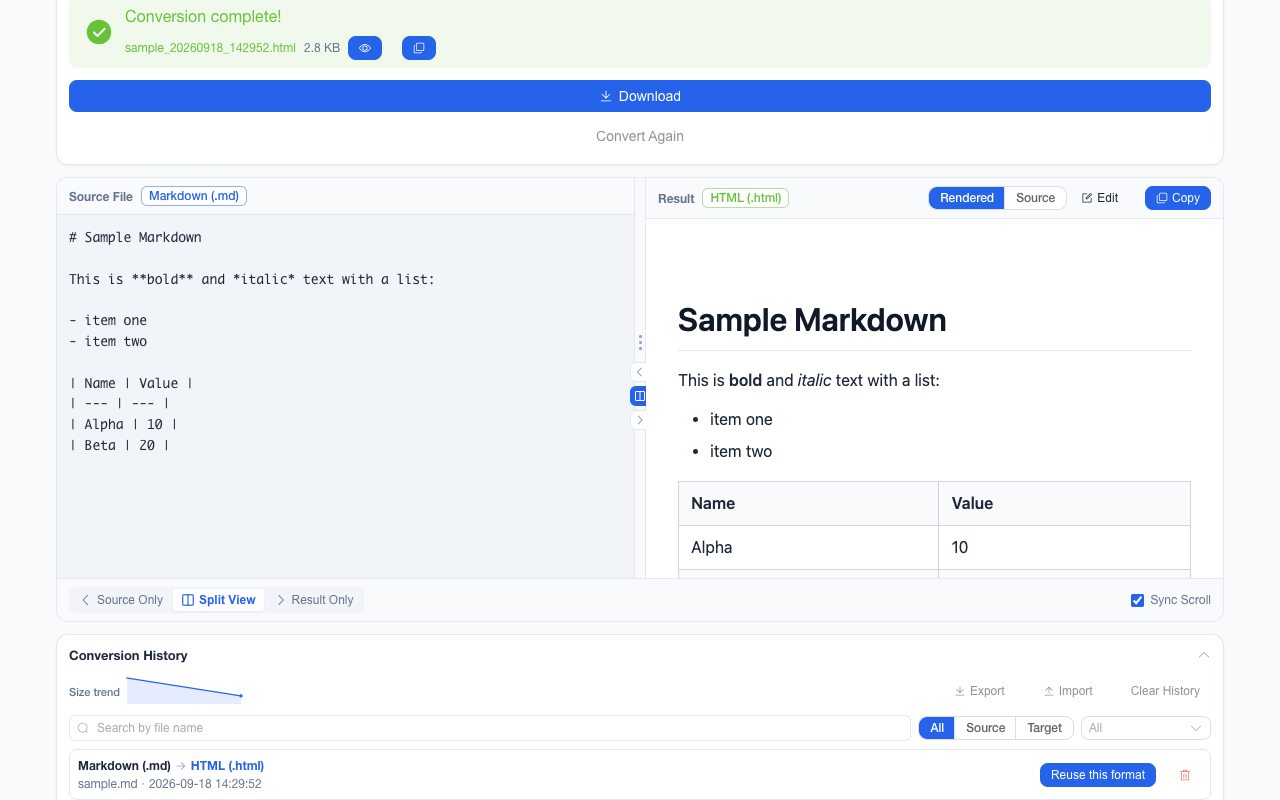
SVG ──► HTML ──► PNG结果有两个。第一,多步链路是「求出来的」,不是写出来的——用户点一次「Markdown 转 PDF」,实际跑了两段,中间产物不落盘。第二,新增一个转换器只有 20 行,而所有经过它的路径立刻自动可用。当前这张图有 48 条注册路径,工作台页脚那行「14 formats supported, 48+ conversion paths」是从图里现算出来的,不是抄来的文案。 Two consequences. First, multi-hop chains are computed, not written — the reader clicks "Markdown to PDF" once and two converters run, with no intermediate file on disk. Second, a new converter is about 20 lines, and every route through it becomes available immediately. The graph currently holds 48 registered direct routes, and the footer line in the workbench ("14 formats supported, 48+ conversion paths") is computed from the graph at runtime, not pasted from copy.
「支持多少个转换」只有一个诚实的答案:图上可达 143 个组合,界面实际提供 116 个。另外 27
个由一层策略(utils/core/conversion-policy.ts)置灰——它们在图上是通的,语义上却没有意义:24
个图片 → 文本/数据(栅格图里没有文字层,除非接 OCR),3 个 PDF → 表格结构(PDF
不带表格)。这些边不能直接删掉,因为同一条边换个源格式就成立了(HTML → JSON
面对真实表格完全可用),所以只能按「源 + 目标」的组合屏蔽,并把原因显示在界面上。
"How many conversions do you support" has exactly one honest answer:
143 combinations are reachable, 116 of them selectable. The other 27 are greyed out by a policy
layer (utils/core/conversion-policy.ts) — structurally reachable but semantically empty: 24
image→text/data (a raster image has no text layer without OCR) and 3 PDF→data (a PDF carries no table
structure). I cannot just delete those edges, because the same edge is perfectly valid for a different
source (HTML → JSON works fine on a real table), so the invalid pairs are filtered per source-and-target
combination, with the reason surfaced in the UI.
14 种格式里有 11 种可写(它们才会出现在注册路径的某一步的目标上);图片这边可写 3
种,就是浏览器提供编码器的 PNG / JPEG / WebP。每条经过新格式的多步链路不需要有人手写登记——转换一览那组页面由脚本从同一份路径基线生成,页面里画的链路就是
resolvePath() 真正会走的那一条,链路对不上时生成脚本直接失败。
11 of the 14 formats are writable — a format counts as writable when it appears as the target of some
registered step — and the writable image formats are 3: PNG, JPEG and WebP, the three browsers can
encode. No one hand-registers the multi-hop routes through a new format:
the conversion index is generated from the same route baseline the code is
checked against, so the chain drawn on a page is the one resolvePath() actually walks, and
the generator fails when the two disagree.
四、批量场景才见真章:几个踩过的坑4. Batch is where it earns its keep
单个文件转换,在线工具也做得不错。真正逼出差异的是「我手上这 40 个文件格式还不一样」。 For a single file, online tools are fine. What forces the difference is "I have 40 files in 4 different formats".
混合源格式批次。Mixed-source batches. 拖进来的可能是 .md、.csv、.xlsx 各若干。下拉框照样列出全部格式,但只有对批次里每一个文件都可达的目标保持可选,其余置灰——否则用户选了一个只有一部分文件能转的目标,剩下那半会整批失败。 The drop may contain .md, .csv and .xlsx together. The dropdown still lists every format, but only targets reachable from every file in the batch stay selectable — the rest are disabled. Otherwise the reader picks a target half the batch cannot reach and half of it fails.
逐文件错误隔离。Per-file error isolation. 一个损坏的 .docx 不能毁掉整批。每个文件独立求路径、独立执行、独立记录失败原因;每条失败可以展开看诊断(完整的转换路径,以及卡在第几步),一键复制成纯文本贴进 issue。批次还能中途取消,已完成的结果保留。 One corrupt .docx must not destroy the batch. Each file resolves its own path, executes independently and records its own failure reason; each failure expands into a diagnostic — the full conversion path and which step it died on — that copies out as plain text ready to paste into an issue. Batches are cancellable mid-flight and completed results are kept.
ZIP 压缩要按条目选择。Pick the ZIP method per entry. 直觉做法有两种:全部 stored(快,但文本结果体积白占)或全部 deflate(省空间,但对 PDF / XLSX / DOCX 这类自带容器的产物纯粹烧 CPU)。实测答案是按条目决定,而「压不动」的范围比直觉小:文本类(TXT / CSV / JSON / HTML / Markdown / SVG / XML)走 deflate,能小一个数量级;图片也走 deflate——一页以纯色为主的文档,用扩展自己的编码器(Chrome canvas.toBlob)出图,PNG 条目小 49.9%、JPEG 小 91.1%、WebP 小 50.0%,100 页的 PNG 导出从 5.13 MB 压到 2.57 MB;12 页真实 PDF 导出实测 PNG 小 39.3%、JPEG 小 58.6%;连十四张商店截图都能小 6.9%。只有照片那一类高熵图像压不动,最多大 0.014%。压这些字节也不吃主线程:40 MB 条目压完,页面最长一次响应延迟 9 ms。用 fflate 跑 7 MB CSV 配 6 MB 不可压缩数据:全部 stored 得到 13.28 MB / 56 ms,全部 deflate 得到 7.04 MB / 1169 ms。按条目选择拿到和全量 deflate 基本相同的体积(比全 stored 小约 47%),却不在压不动的条目上空烧 CPU。 There are two intuitive answers: store everything (fast, but text results waste space) or deflate everything (compact, but pure CPU burn on PDF, XLSX and DOCX, which carry their own containers). The measured answer is decide per entry — and "cannot shrink" covers far less than intuition says: text formats (TXT, CSV, JSON, HTML, Markdown, SVG, XML) deflate and come out roughly an order of magnitude smaller, and so do images — encode one mostly-flat document page with the encoder this app itself uses (Chrome canvas.toBlob) and a PNG entry gets 49.9% smaller, a JPEG 91.1%, a WebP 50.0%, while a 100-page PNG export goes from 5.13 MB to 2.57 MB; the 12 pages of a real PDF export measured 39.3% for PNG and 58.6% for JPEG, and fourteen store screenshots give up 6.9%. Only a high-entropy photograph gains nothing, at 0.014% more archive for the attempt. Those bytes don't occupy the page either: packing 40 MB deflated held the main thread for at most 9 ms. Running it through fflate on 7 MB of CSV alongside 6 MB of incompressible data: all-stored gave a 13.28 MB archive in 56 ms, all-deflate gave 7.04 MB in 1169 ms. Per-entry gets essentially the same size as all-deflate — about 47% below all-stored — without spending CPU on the entries that cannot shrink.
中文 CSV 是编码问题,不是语言问题。Chinese CSV is an encoding problem, not a language problem. 读取时先试 UTF-8,失败依次回退 GB18030 与 GBK;写出时带 UTF-8 BOM。跳过这一步,Excel 打开就是乱码,中文用户第一分钟就会流失。 Read: try UTF-8, then GB18030, then GBK. Write: prepend a UTF-8 BOM. Skip that and Excel opens the file as mojibake, and Chinese-speaking users churn inside the first minute.
表格转换按「值」而不是「显示文本」。Spreadsheet conversions move values, not display text.
.xlsx 里的一个日期,显示成
2026-09-22,底层是个序列号;单元格是文本还是数字,取决于回写后是否还能读成同一个值。所以 xlsx ⇄ csv /
json 走的是值保真:能安全还原成原值的才当数字,长数字ID、前导零、超过 Excel 15
位有效精度的那些保持文本,看起来像
= 开头的公式会被转义——不然换一个软件打开就变成注入。
A date in .xlsx displays as 2026-09-22 but stores a serial number, and whether a cell is text or a
number depends on whether it reads back as the same value. So xlsx ⇄ CSV/JSON serialises from stored
values: only what round-trips to the same value counts as a number, long IDs, leading zeros and anything
past Excel's 15 significant digits stay text, and something that only looks like a
= formula gets escaped — otherwise the next application to open the file turns it into an
injection.
不可信输入必须净化。Untrusted input gets sanitised.
用户上传的 HTML / SVG / Markdown 全都是攻击面。任何由用户文件生成的 HTML、SVG、Markdown 在渲染前都要过
DOMPurify,预览跑在 sandbox 的 iframe 里,SVG
里会动的内容(脚本、外链、事件属性)先剥掉,全程禁止 v-html、eval、new Function。
Uploaded HTML, SVG and Markdown are all attack surface. Every HTML, SVG or Markdown document generated
from a user file passes through DOMPurify before it is rendered, previews run in a
sandboxed iframe, active SVG content (scripts, external references, event attributes) is
stripped first, and there is no v-html, no eval, no
new Function anywhere in the runtime path.
首屏不该背着 pdf.js。The first screen should not carry pdf.js.
所有重型依赖在转换器内部动态 import(),重型子组件用
defineAsyncComponent 懒加载,连打包用的 fflate 也是到真正要用的那一刻才加载。整个扩展产物
3.90 MB,但打开工作台时不会去拉 1.26 MB 的 pdf.worker。
Every heavy dependency is dynamically import()ed inside its converter, heavy child
components are lazy-loaded with defineAsyncComponent, and even the ZIP packer (fflate) is
loaded at the call site that needs it rather than up front. The whole extension builds to 3.90 MB, but
opening the workbench never pulls the 1.26 MB pdf.worker.
让重复动作变便宜。Make repeated actions cheap.
有一批细节只有天天用才会察觉:最近用过的 6
个目标格式会以下拉顶部的「最近使用」分组呈现,并且只对当前批次仍然可选的那些出现;拖放不限于那块虚线框,整个页面都能接住文件(转换进行中投放被忽略,光标显示为禁止);剪贴板里的内容直接
⌘V /
Ctrl+V 就能转;上一轮结果可以撤销;大批量确认框自带「下次不再询问」勾选;开始转换的
Ctrl/⌘ + Enter 可以改绑;分隔条位置和历史卡片的折叠状态跨会话保留;最近 50
条记录只存元数据,不存文件内容;长批次在后台标签页跑完时,可以选择发一条桌面通知。
A set of details you only notice after daily use: your 6 most recent target formats appear as a
Recently used group at the top of the picker, and only while they are still selectable for the
current batch; dropping files works anywhere on the page, not just inside the dashed zone (a drop during
a running conversion is ignored, with a forbidden cursor); clipboard contents convert with
⌘V / Ctrl+V; the previous batch can be undone; the large-batch confirmation
carries its own Don't ask again box; the Ctrl/⌘ + Enter convert shortcut is
rebindable; the split-divider position and the history card's collapsed state persist across sessions;
the last 50 history records store metadata only, never file contents; and a long batch finishing in a
background tab can optionally raise a desktop notification.
「转成 WebP」只是半个需求。"Convert to WebP" is only half the request. 目标是图片时,工作台多出一行输出参数:最长边 800–4096 px,目标为 JPEG / WebP 时还有质量 40–90% 与一个目标体积 20 KB–2 MB——编码器先把质量往下走,走不动了才减像素,所以体积是追到的上限,不是承诺(边长控件后面还压着一道 8192 px 的硬上限)。四条能产出图片的链路(图片 → 图片、SVG → 图片、HTML → 图片、PDF → 图片)走的是同一个编码出口,因此「质量 70%」不会在四条路上变成四种意思。如果这件事每周都要做一次,目标连同参数可以存成一张命名预设卡片(最多 12 张)一键恢复;而且预设绑的是目标不是源格式——「PNG → 200 KB WebP」这一张,下次拖进来的不管是 Markdown、PDF 还是 PNG 都能用。 When the target is an image, the workbench gains an output row: a longest edge of 800–4096 px, and for a JPEG or WebP target also quality 40–90% and a target file size of 20 KB–2 MB, which the encoder chases by walking the quality ladder before it throws pixels away — a ceiling it tries for, not one it promises (an 8192 px hard cap sits behind that edge control). Every route that can produce an image (image→image, SVG→image, HTML→image, PDF→image) goes through the same encoder call, so "quality 70%" cannot mean four different things. If the job recurs, the target plus its parameters save as a named preset card (up to 12 of them), restored in one click, and the preset is bound to the target rather than to a source format: "PNG → 200 KB WebP" works whether the next drop is Markdown, PDF or PNG.
无障碍是一个可测的数字,不是善意。Accessibility is a measurable number, not a goodwill gesture. 五组颜色从真实页面上读回来,在 6 种主题 × 明暗共 12 组配置下逐主题断言:顶栏与主按钮在彩色表面上统一用白字(与另外两个扩展共用同一套皮肤),品牌字实测 2.78 / 2.54 / 3.56(晴空蓝 / 森林绿 / 活力橙),主按钮标签从静止的 2.78 / 2.54 / 3.56 掉到悬停提亮一档后的 2.22 / 1.92 / 2.80,其余主题与全部深色档位 ≥ 4.5:1,这些读数作为明示的已知限制逐主题钉住下限(这两项是 WCAG 2.1 AA 对文本的要求),焦点环对卡片底色 ≥ 3:1(AA 对界面组件的要求),拖放提示、文件大小、页脚这些给人读的句子对各自底色 ≥ 4.5:1,Element Plus 浅色效果的警示框标题与文件行的格式标签——同一支语义色同时当墨与底——对各自的淡色底 ≥ 4.5:1;测试还单独断言第一次 Tab 落在 skip link 上、并且它显示可见的焦点环——不是「看着还行」。主按钮这一条最值回票价:先把它写成测量时,12 组里有 7 组不达标,最差 3.45:1,而且失败点全在悬停或按下的中间色阶上,静止态反而是过的——当时的修法是让这两档色阶从文字颜色的反方向推导。 2026-10-26 起这组色阶又跟着另外两个扩展的皮肤改回「白字 + 悬停提亮」,所以蓝 / 绿 / 橙三档改为按实测读数逐主题钉住下限(悬停 2.22 / 1.92 / 2.80),卡片上给人读的句子最差一组仍是 4.70:1。还有一个缺口公开写着而不是藏起来:控件填充色对所在卡片底色 ≥ 3:1(WCAG 1.4.11)在 12 组里成立 9 组,浅色的晴空蓝、森林绿与活力橙不成立,因为那三档填充本身就接近白色。 Five contrast pairs are read back off the live page in 6 accent themes × light and dark, 12 configurations, and asserted per theme: the bar and the filled buttons carry white on the coloured surfaces, sharing the sibling extensions' skin — 2.78 / 2.54 / 3.56 for the wordmark under sky blue, forest green and orange, and the primary button's label running 2.78 → 2.22, 2.54 → 1.92, 3.56 → 2.80 from rest to a hover that lightens the fill, with purple, rose, slate and every dark theme at 4.5:1 or better and those readings pinned per theme as stated limitations; the focus ring against a card at 3:1 or better (WCAG 2.1 AA for text and for user-interface components respectively), informational text — the drop hint, file sizes, the footer — against its own backdrop at 4.5:1 or better, and the titles of Element Plus's light-effect alerts plus the format tag on every file row — there one semantic colour serves as both ink and fill — against the tint underneath them at 4.5:1 or better. The suite separately asserts that the first Tab lands on the skip link and that it shows a visible ring. Not "looks fine". The button gate is the one that earned its keep: written as a measurement first, it reported the label failing 4.5:1 in 7 of the 12 configurations — 3.45:1 at worst, always in a hover or active shade rather than at rest — and the fix was to derive those two shades from where the label sits instead of from the theme's lightness ladder — a fix that held until 2026-10-26, when the fill and label went back to the sibling extensions' recipe (white ink, hover lightens), so blue, green and orange are now pinned per theme at their measured readings (2.22 / 1.92 / 2.80 at hover) while the sentences on a card still bottom out at 4.70:1. One gap stays documented rather than hidden: 3:1 between a control's fill and the card behind it (WCAG 1.4.11) holds in 9 of the 12 but not under the light sky-blue, forest-green and orange buttons, whose fills sit close to white.
「离线」这个说法要划清可证的边界。"Offline" is a claim with a precise scope.
CI 里 pnpm verify:offline 断言的是:第一方源码不含任何网络调用,manifest 只要
storage、没有 host_permissions。它不断言打包产物里搜不到
fetch 字符串——jsPDF 和 pdf.js
的未调用路径里确实带着。这些路径不会被第一方代码走到;即使走到了,在没有 host 权限、也没有 content
script
的情况下,扩展读不到响应、也碰不到任何网站的数据。另一条主张「包里不留远程托管的代码」是单独一层:verify:remote-code
读的是构建产物本身,因为商店按产物内容判定,跟那段代码可不可达无关。两道守卫都跑过,「0
个网络请求」才站得住。
What CI asserts (pnpm verify:offline) is that first-party source contains no network call
and that the manifest asks for storage alone with no host_permissions. It does
not assert that the string fetch is absent from the bundle — jsPDF and pdf.js carry
unused code paths that call it. Those paths are never entered, and even if one were, with no host
permission and no content script the extension cannot read a response or reach any website's data. "No
remotely hosted code" is a separate assertion, and it reads the built artifact, because the store
judges the package by its contents regardless of whether a path is reachable. Both guards passing is
what makes "0 network requests" defensible — and it is the version worth writing down.
五、它现在在哪、怎么装5. Where it is and how to install it
已经上了 Chrome 应用商店(这一节更新于 2026-10-02,原先写的是「还没上」)。两条路: 商店条目,一次点击,之后自动更新;或者源码加载,四步,给要审阅构建产物、或要改代码的人。 It is on the Chrome Web Store now. This section was updated on 2026-10-02 — it used to say "not yet". Two routes: the listing, one click and updates arrive on their own; or loading it from source in four steps, which is the route for anyone auditing the built artifact or changing the code.
# 环境:Node.js ≥ 20.12、pnpm
git clone https://github.com/liaolongdong/transfer-any-file
cd transfer-any-file
pnpm install && pnpm build
然后 chrome://extensions → 打开右上角「开发者模式」→「加载已解压的扩展程序」→ 选
.output/chrome-mv3 → 点工具栏图标,工作台在新标签页打开。
Then chrome://extensions → enable "Developer mode" (top right) → "Load unpacked" → select
.output/chrome-mv3 → click the toolbar icon, and the workbench opens in a new tab.
商店需要的东西在仓库里就写好了:名称与描述文案、1280×800
截图、权限逐条说明、隐私政策、数据披露答复,都在 .github/CHROMEWEBSTORE.md 和这份隐私政策里。审核前三轮都被拒:前两轮是文案里的格式名列表,第三轮换了一条轴——包里的远程托管代码,改的是构建不是
文案(见第四节)。2026-10-02 实测条目已上线。后续版本想推动什么,去仓库开个 issue。
Everything the store asks for was already written down in the repo: name and description copy, 1280×800
screenshots, a line-by-line justification for each permission, the privacy policy and the
data-disclosure answers — all in .github/CHROMEWEBSTORE.md and
this privacy policy. The first three review passes were all rejections:
the first two over format-name lists in the copy, the third on a different axis entirely — remotely
hosted code inside the package, which was fixed in the build rather than in the text (see section 4).
The listing measured live on 2026-10-02. To push anything for the next version,
open an issue on the repo.
技术栈:WXT + Vue 3 + TypeScript + Element Plus,Manifest V3,权限只有 storage,MIT
协议。验证方式也是交付的一部分:Playwright 驱动构建产物跑 504
条断言,转换用的夹具(fixtures/)随仓库走,谁都能本地重跑。
Tech stack: WXT + Vue 3 + TypeScript + Element Plus, Manifest V3, storage as the
only permission, MIT licence. How it is verified is part of the deliverable too: Playwright drives the
built artifact through 504 assertions, and the fixtures it converts live in fixtures/ next
to the code, so anyone can re-run them.
六、谁不该用它6. Who shouldn't use it
- 要转视频、音频、EPUB、CAD:找专业在线服务,别为难浏览器。 Video, audio, EPUB and CAD: use a proper service. Do not ask a browser to do this.
- 要把扫描件 / 截图变成可编辑文字:那是 OCR,这里没有。 Scanned pages or screenshots that need to become editable text: that is OCR, and it is not here.
- 要把 PDF 转成排版完好的 Word:这里只能给你文本,版式会丢。 PDF → Word with the layout intact: you will get the text and lose the layout.
- 公司设备由 IT 统一管扩展安装:商店那条路得看策略放行,源码那条要开发者模式,通常先被禁。 A company machine where IT controls extension installs: the store route depends on policy allowing it, and the source route needs Developer mode, which is usually blocked first.
但如果你手上是合同、薪资表、病例、未公开稿件、客户数据,只是想在 Markdown / Word / PDF / Excel / CSV / JSON / HTML / 图片之间倒一下格式——那它不该有任何理由离开你的电脑。 But if what you are holding is a contract, a payroll sheet, medical records, an unpublished manuscript, client data, and you just need to move format between Markdown / Word / PDF / Excel / CSV / JSON / HTML / images — there is no reason for it to leave your machine.
如果你手上那个具体的配对想知道边界在哪,直接去那一页:会保留什么、不做什么、实操提示、常见问题都按配对写好了。 If you want the limits for one specific pair, go straight to its page: what carries over, what it does not do, working notes and questions, written per conversion.
从 Chrome 应用商店安装Install from the Chrome Web Store 转换一览(116 个配对)Browse the conversions (116 pairs) 安装步骤Install steps