Chrome Password Manager: Which One to Use?
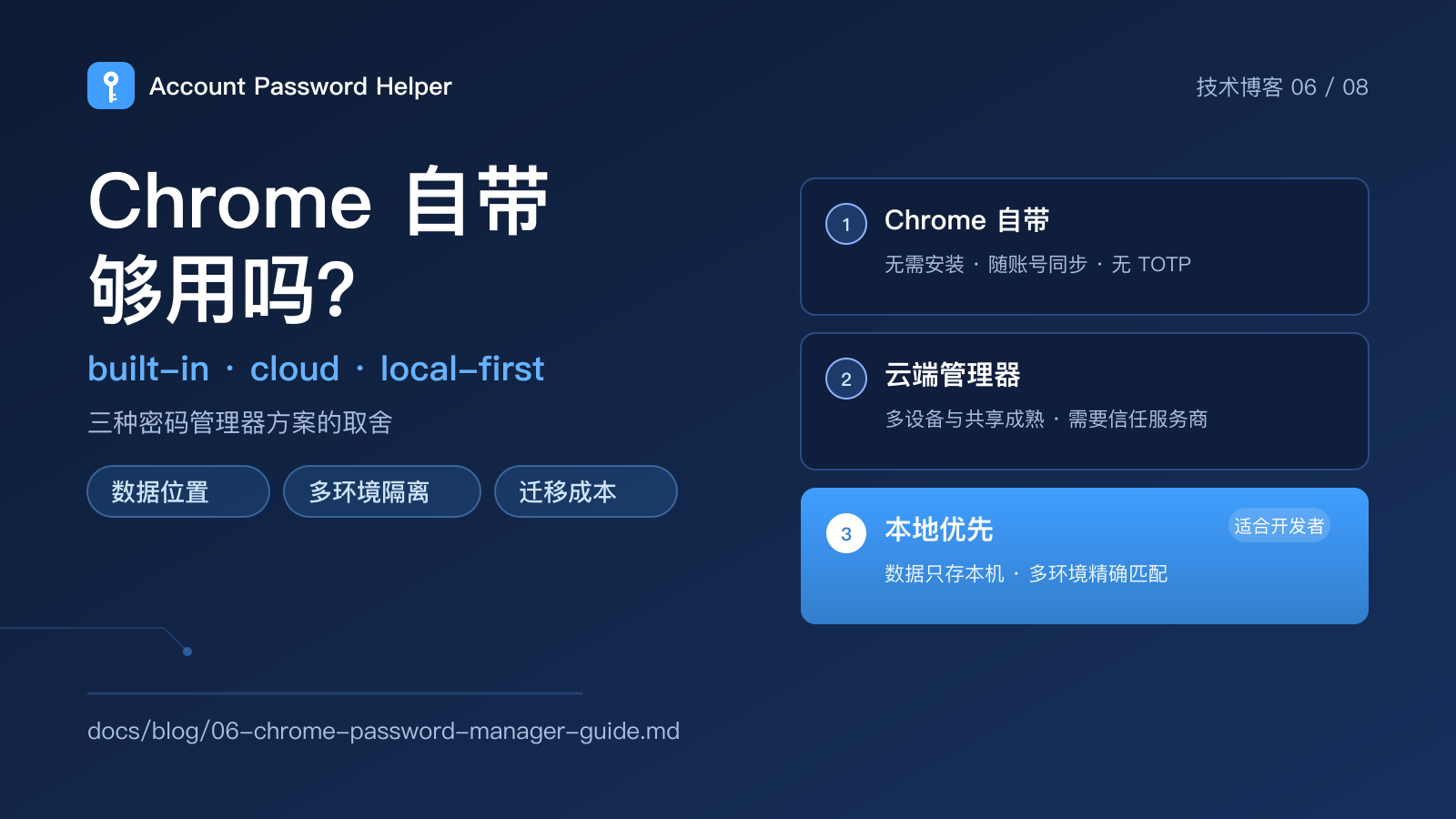
Almost everyone who uses Chrome has seen the "Save password?" prompt. A few clicks later, the browser holds a working set of credentials. So why install another password manager at all?
The answer depends on which trade-off matters most to you: convenience, multi-device access, or control over where the data lives and how accounts are matched. This post breaks down the three common options and ends with a checklist you can apply directly.
Four dimensions that matter
Feature lists get long quickly. For most developers, QA engineers and everyday users, four dimensions decide the day-to-day experience:
- Where the data lives: only on this device, synced to a cloud account, or both;
- How accounts are matched: whether dev / test / prod credentials can leak into each other;
- What happens beyond filling: TOTP, password generation, security checks, import and export;
- The cost of leaving: whether you can take the data with you in a usable format.
Once those are clear, the choice gets much easier.
Built-in Chrome passwords: convenient, with limits
The built-in manager needs no explanation: nothing to install, save prompts on login, and a smooth experience inside Chrome. For someone with one computer and a handful of sites, it is often enough.
Know the boundaries:
- Sync means the data leaves the device. With Chrome sync enabled, saved passwords travel with your Google account to other devices. That solves multi-device access, and it also means accepting that the browser vendor holds the data.
- Matching usually works at the site or registrable-domain level. That is friendly for ordinary users and risky for developers:
admin-dev.example.comandadmin.example.commay be treated as the same site, so filling the right environment is not guaranteed. - No built-in TOTP. The second factor still lives on your phone or in another app, so a two-step login means switching tools.
- Limited local health analysis. Leak and reuse checks often depend on vendor-side services rather than computation on your machine.
Built-in Chrome works for simple, single-device use where sync is acceptable. It stops being enough once you maintain several environments or want the vault to stay on your machine.
Cloud managers: stronger multi-device and sharing
Bitwarden, 1Password and similar services solve a different problem: sync across devices and browsers, mobile apps, team sharing, emergency access and mature import/export. Their security engineering is often solid, and they are a good fit for many users and teams.
The trade-off is trust: you are trusting the provider's servers, client implementation and business continuity. That does not make cloud managers unsafe; it expands the trust boundary from "my computer" to "my computer plus the provider". Subscriptions also add an ongoing cost, which may be unnecessary for someone who only needs local management.
If multi-device access, family sharing or team sharing is the core requirement, a cloud manager is usually the smoother choice. If the core requirement is "the data stays on my machine" and "environments must not cross over", a local-first tool fits better.
Local-first tools: pull the trust boundary back to the device
"Local-first" does not mean "never goes online". It means data lives on the device by default, and network access happens only where it is necessary and documented. Account Password Helper is one example:
- The master password derives the key with PBKDF2-SHA256 (600,000 rounds); username, password, URL, remark and TOTP secret are encrypted field by field with AES-256-GCM;
- Ciphertext is written to browser-local storage, and password contents are not uploaded to a server;
- No account system, subscription or ads; the code is GPL-3.0 and the permissions and network calls can be audited;
- Exact-host matching keeps dev / test / prod apart, and
localhost/127.0.0.1stay per-port; - Built-in TOTP, password generator and an offline security check.
The costs are just as real: no cross-device sync, so backup and migration are your responsibility; a forgotten master password cannot be recovered by default (unless you enrolled an offline recovery key), so export encrypted backups regularly; and local encryption protects data at rest and in storage, but it cannot replace operating-system security or guarantee safety on an already-compromised machine.
Local-first tends to fit:
- developers and QA engineers juggling multiple environments;
- privacy-conscious users who do not want passwords passing through a third-party server;
- people who accept responsibility for backups and will export encrypted copies regularly.
A practical checklist
| Your situation | Better fit |
|---|---|
| One computer, a few sites, browser sync is fine | Built-in Chrome |
| Multiple devices, phone access, family or team sharing | Cloud password manager |
| Strict dev / test / staging / prod isolation | Local-first with exact-host matching |
| TOTP, generation and health checks in one local tool | Local-first tool |
| Password contents must never leave the device | Local-first with encrypted backups |
| A team needs one shared credential | A team password manager or enterprise secret manager — not a group chat |
Decide the boundary before the feature list
There is no universal winner. Built-in Chrome wins on zero friction, cloud managers win on sync and sharing, and local-first tools win on data boundaries and environment control. The real question is: which part of the trust are you willing to hand over, and which convenience are you willing to pay for?
For a feature-by-feature comparison, see Account Password Helper vs Bitwarden and 1Password. For the encryption details, read Web Crypto in practice.
If you need a free, open-source, local-first Chrome password manager, try Account Password Helper: exact environment matching, one-click login, built-in TOTP and an offline health check, with data written only to your machine.