Open source (GPL-3.0) · Local encryption · No password uploads
A local-first password manager built for developers & QA
Account Password Helper is an open-source Chrome password manager: usernames, passwords, URLs, notes and TOTP secrets are encrypted field by field with AES-256-GCM and kept only on your machine, then it fills, ticks and clicks sign-in for you. Exact-hostname matching isolates dev / test / staging / prod accounts, with three tiers to widen it; offline security audit and password generator built in. No sign-up, no servers, no uploads.
Can't access Google? Download the zip from GitHub Releases and install it manually
Security Notice: Account Password Helper is built for development, testing and everyday sign-in scenarios. All data stays in your browser, encrypted with AES-256-GCM, and is never uploaded. We recommend not storing highly sensitive credentials (banking, payment, etc.) in any browser extension.
AES-256-GCM local encryption
4654automated test cases
5sensitive fields encrypted individually
3cross-subdomain match tiers
6color themes
30command palette commands
0cloud accounts or sync servers
The five encrypted fields are written only to chrome.storage.local on your own machine · the one outbound call is an anonymous version check every 6 hours · GPL-3.0, source auditable
What Kind of Cost It Removes
Every row in the right column is behaviour this extension already ships, not a roadmap promise
Two ways to do the same thing — before installing on the left, after on the right
Scenario
Without it
With it
Accounts across environments
Four accounts for dev / test / staging / prod of the same system sit side by side and overwrite each other during autofill — filling the wrong environment happens all the time.
Matching defaults to the exact hostname, so the four environments never cross over; when one account really does serve them all, widen the tier by one.
Two-step verification
The password is in the manager and the code is on your phone: mid-login you switch apps, hunt for the entry and copy six digits — and if the code expires, start over.
The TOTP secret lives in the same entry as the password. On the code page the live-code pill anchors automatically — click Fill and the second step is done.
Pages that refuse to fill
Self-built login pages, legacy systems, inputs inside a Shadow DOM — the browser cannot recognise them, so you type everything by hand.
Point the account / password fields at your own CSS selectors for that domain, reaching into Shadow DOM; export the rules as JSON and hand them to teammates.
Where the passwords live
Cloud storage means accepting "the server may be breached" as a premise, plus a subscription for multi-device sync.
Five sensitive fields are encrypted individually with AES-256-GCM and written only to local chrome.storage.local — no cloud, no account, no subscription.
Moving in
Migrating out of another password manager means retyping everything by hand, or giving up on the export format.
Export formats from Chrome / LastPass / Bitwarden / 1Password are detected automatically, as CSV or JSON, in about 30 seconds.
Which passwords to change
Reused, too weak, long since leaked — you never know unless you check each one, and by the time something breaks it is too late.
One click gives a 0-100 offline score, weighted across reuse / weak / commonly leaked / long-unupdated — every calculation stays on your machine.
Try it
Which accounts show up for one site's environments?
Type a hostname and switch between the three tiers to see the candidate list change. The data is fictional and the rules match the extension; widening a tier changes what is shown and fillable, never how auto-save deduplicates.
Matching tier
admin.example.com · 3 of 11 entriesTier 1: only entries whose host matches exactly
Ssupport@example.comProduction support · admin.example.com
Exact
Demo data is fictional; localhost, 127.0.0.1 and [::1] count as one machine and stay per-port at every tier.
Core Features
From encrypted storage to smart filling, from 2FA to health checks — the full lifecycle of your credentials in one place
Local Encryption — Passwords Are Never Uploaded
The master password derives a 256-bit key via PBKDF2 (600,000 iterations); username, password, URL, remark and TOTP are each stored as ciphertext. Locking and session expiry destroy only the session key material — the vault is already ciphertext at rest, and no password content is ever uploaded. Every master password field also warns live when Caps Lock is on, so a case typo never looks like a wrong password.
Pick your style: the in-field inline mini panel (default), the side panel, the right-click menu, or the quick-fill shortcut. Quadruple fill strategies work on React / Vue and classic pages alike; exact domain matching separates test environments, the side panel toggles between this-site and all-entry search, and auto-login after filling is optional.
Side panel Ctrl+Shift+LInline panel Ctrl+Shift+KQuick fill Ctrl+Shift+FRight-click fillAuto login triggerPassword visibility toggleOne-click share card
Smart Login Form Detection
Automatically detects username, password, phone, and verification-code fields (including cross-iframe), and can auto-check options like "Remember me" and "Agree to terms".
TOTP Two-Factor Codes
Add a secret by scanning an on-page QR code or uploading an image; codes are generated locally (RFC 6238, zero network) with live codes and countdowns in the list, side panel and inline panel, plus one-click fill / copy — split two-step logins auto-hand off a live-code capsule on the code page.
888 999
Security Health Dashboard
One click yields a 0–100 score from four weighted dimensions: reuse (35), weak (25), commonly leaked (20, offline dictionary) and stale (20); missing 2FA is flagged but unscored — with expiry reminders, all computed locally.
82
Auto-Save Login Credentials
Chrome-style credential capture with a confirmation prompt on login; edit tag and remark in the prompt; allowlist/blocklist matching, fingerprint-based dedup, and one-click "Never for this site"; weak and reused passwords are flagged inline in the prompt (a heads-up only — saving is never blocked).
Import, Export & Encrypted Backup
CSV / JSON formats with auto-detection of Chrome, LastPass, Bitwarden, and 1Password exports; encrypted .aph backup export/import, plus email backup with scheduled reminders.
Tags, Favorites & Smart Search
Multi-select tags with stable colors, tag filtering, pinned favorites (configurable limit + LRU eviction), multi-field smart search (pinyin / initials + match highlighting) and sorting, one-click dedup, and batch delete / tag editing / export of selected entries — plus a read-only "View details" drawer for the full remark and password history, no edit mode needed. Long lists stay organized.
Dual-Mode Password Generator
Random passwords (length, character sets, ambiguous-character exclusion) and passphrases (a bundled 3,080-word list) — cryptographically secure via Web Crypto, with a live strength bar.
Vector-Sunset-King-Ready73
Strong4/4
The demo draws on a 96-word excerpt; the extension ships the full 3,080-word list.
Trash & Password History
Deleted entries stay in the trash for 30 days and can be restored anytime (newest deletion first, with keyword search); password history is configurable (enable/disable, 1–10 encrypted snapshots per entry, default 3) for one-click rollback; changing the master password re-keys atomically without data loss.
Themes & Bilingual UI
6 color themes and instant Chinese/English switching; entries show site favicons (read from the browser's local cache, zero network) for faster recognition in long lists.
Personal Info Vault
A standalone locker for personal details — name, ID number, phone, email, address, bank card (number / issuing bank / holder / expiry / CVV) and custom fields. It opens on the manager page, and you no longer have to walk there first: right-click any editable field on a web page, pick "Pick from Personal Info Vault", then use the "Back to the page" strip to land back on the field you were filling (that menu item only navigates — it reads no field content and never writes back into the page). Encrypted as one AES-256-GCM blob with secret fields masked by default and a master-password re-check to open (by default it asks once per manager-page session). Copy a single field or the whole card in one click (the clipboard auto-clears on a timer), batch-show / hide secrets, collapse cards one at a time or all at once, sort by updated / created / category / title, or choose Manual and drag the handle on the left of a card (or hold Alt with Up / Down) to set a custom fixed order (remembered on this device), search with pinyin matching and a match count, export a checked subset, get an on-save possible-duplicate reminder, and see the 100-record cap. Encrypted .aphid backup export/import, plus an optional plaintext .json export / re-import gated by a master-password re-check and a risk confirmation; the vault carries its own trash — deleted records stay restorable or permanently deletable for 30 days before they are cleaned automatically; it is not covered by automatic backups, so export an encrypted backup regularly.
Site Rules Fallback
Login fields hidden inside custom components? Under "Site rules" on the manager page, pin the CSS selectors for that domain's username and password inputs (the rule domain must equal the login page domain exactly). Every rule carries a "Shadow DOM penetration" switch, on by default, that reaches open shadow roots only. Rules export as plain-text JSON (domains and selectors, never credentials) and merge-import by domain, so a team can share one working set instead of configuring browser by browser.
Domain & Port Isolation
By default only entries on the exact host are shown. "Exact + wildcard entries" makes an account saved as *.qq.com appear on any subdomain of that site; "Same main domain" adds a fallback — when the current host has no account of its own, entries from the apex domain and sibling subdomains are offered, badged "cross-subdomain". A separate port axis keeps services on different ports of one domain apart: an entry that declares a port appears only there, and one without a port only on the scheme's default port. Widening changes only which entries are offered and fillable; the auto-save duplicate rule is deliberately tier-independent.
Feature Showcase
From first-time setup to daily use — one image per feature
STEP 01
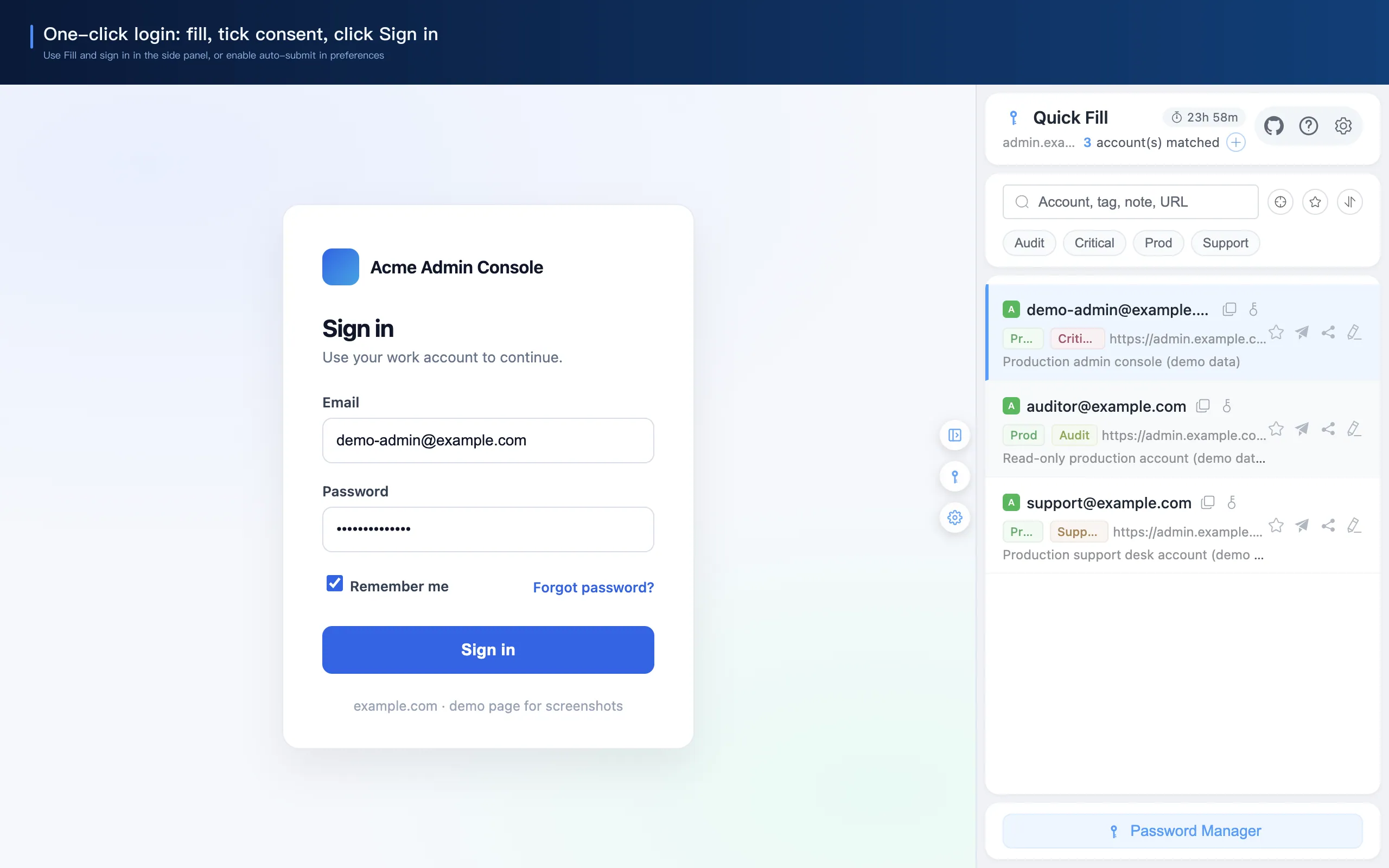
One-click sign-in: fill, tick, submit
On a login page, pick an entry in the side panel and choose "Fill and sign in" — credentials filled, "remember me" ticked, sign-in clicked. Turn on "Auto-submit login" and Ctrl+Shift+F does the same. The panel lists the current domain first, and the "+" in its header adds an account for this site on the spot.
How it works
The four steps one fill takes on your own machine, from opening a login page to saving a new credential
1
Read the login page
The content script works out which fields are username, password and one-time code. Scanning is throttled and batched, and never rewrites the host page’s styles or scripts.
2
Pick candidates by domain
Three cross-subdomain tiers decide which accounts appear in the side panel and the inline dropdown. Exact host match is the default, so dev / test / staging / prod entries never mix.
3
Decrypt locally
The master password derives a key through PBKDF2. Opening a list decrypts the vault once, and the plaintext lives only in the extension’s own context — the disk keeps ciphertext. Key material and decrypted snapshots are destroyed on lock or expiry.
4
Fill, then sign in
Fields are written one by one, consent and “remember me” boxes get ticked, and the sign-in button can be clicked for you if you switch that on. A credential seen for the first time always asks before it is saved.
Why it opens without a stall
All four happen on your own machine — not one of them waits on a server.
ResidentA 20s heartbeat plus a 30s revival alarm keep the background service worker alive on every platform, so the password cache is already in memory — there is no cold start to wait for when you open the panel.
Pre-warmedWindow focus, tab switches and the keep-alive tick each warm the side panel’s render resources per platform (throttled to once every 5 minutes), so the first open is not fetching chunks off disk.
RaceThe in-memory session snapshot, the background data call and the panel’s own storage read run in parallel — whichever returns first is used, and one path failing never blocks the other two.
First batchThe list paints one batch of rows on the first frame, then opens up frame by frame as you scroll — so even near the 2000-entry ceiling you never wait for the whole table.
We tune “open the side panel” toward “the UI is already there”: with a live session the data comes back from cache in roughly 20-50ms. We deliberately make no single millisecond promise across machines — disk speed and live antivirus scanning vary more than anything we control.
Get Started in Four Steps
No sign-up, no login — download and go
01
Install the Extension
Install with one click from the Chrome Web Store (recommended — auto-updates). If you can't access Google, download the zip from GitHub Releases and install manually. After installation the key icon appears in the toolbar.
02
Set a Master Password
Set a master password of at least 8 characters with letters, numbers and symbols. Optionally prepare an offline recovery key in Security Settings (off by default); save and verify its kit before activation.
03
Add or Import Passwords
Add accounts manually, or bulk import via the CSV template or a JSON file; tags keep everything organized. On your first visit to the manager page a spotlight tour plays on its own, ringing the real buttons as it walks you through adding, importing, backups and the health check — and when it reaches the "leave a way out" step, a button there opens the offline recovery key settings so you can enrol a kit on the spot (you can also do it later).
04
Enjoy Auto-Fill
Open a login page and click the key icon inside the login field (inline fill, the default) — or fill via the side panel or the quick-fill shortcut (Ctrl+Shift+F).
Updating: simply overwrite the files in the original installation directory with the files from the new zip. Never load the extension from a different directory — Chrome would treat it as a fresh install and your existing password data would become inaccessible.
💡 How to find the current installation directory: open chrome://extensions/, find this extension's card, click "Details", and look for "Source: /path/to/your/directory" near the bottom — that path is the installation directory to overwrite when updating.
Use Cases and How to Handle Them
The shortest path from scenario to entry point — the third column uses the exact names shown in the UI
Filter by type
Common scenarios, the way to handle each, and where to do it
Scenario
How
Where
Developers: several environments in parallel
Keep the default tier and the accounts on fat.example.com and uat.example.com stay strictly apart.
"Cross-subdomain matching" in the password manager header
QA: one account shared across subdomains
Widen one tier to "exact match + wildcard entries" and decide entry by entry which URLs are written as *.qq.com.
Same place; all three tiers switch anytime
Needing the apex domain included too
Widen again to "same apex domain (loosest)": when the current hostname has no match, the apex domain and its other subdomains are offered in order.
Same place (loopback hosts always stay per-port, and localhost / 127.0.0.1 / [::1] count as one machine)
Regression tests that log in repeatedly
Turn on "Auto-trigger login" and the login button gets clicked as part of filling.
Store the code in the same entry as the password; on the code page the live pill anchors automatically and one click fills it.
"Fill and login" in the side-panel entry menu
Legacy login pages it cannot detect
Add a site rule for that domain giving the CSS selectors of the account / password fields; it reaches into Shadow DOM.
"Site rules" on the manager page
Handing rules to a teammate or another machine
Export the rules as JSON; import merges by domain — same-domain entries are overwritten, the rest are kept.
Import / export inside the "Site rules" dialog
Moving in from another manager
CSV and JSON imports, with Chrome / LastPass / Bitwarden / 1Password export formats detected automatically.
"Import data" on the manager page
A new machine or a reinstalled OS
Export a .aph backup and take it along in any cloud drive or on a USB stick; on the new machine import it with the master password used at export — the local one does not have to match.
"Data management" on the manager page
Not inventing a password per site
The built-in generator outputs random passwords or passphrase sets, and the field context menu can generate and fill in place.
The magic-wand button beside the password field, and the page context menu
Checking regularly which passwords to change
A one-click 0-100 offline audit that lists what to fix across four weighted dimensions, all computed locally.
"Security audit" on the manager page
Why Choose Us?
Full comparison with mainstream password managers to find the best fit
Feature
Account Password Helper
Chrome Built-in
Bitwarden
1Password
Price
Free Forever
Free
Freemium
$2.99/mo
Data Storage
100% Local
Local
Cloud
Cloud
One-Click Login (Fill + Tick + Click)
✓
✗
✗
✗
Multi-Environment Isolation
✓
✗
✗
✗
Site Rules (Custom Fill Selectors)
✓
✗
✗
✗
Built-in TOTP 2FA
✓
✗
Paid Only
✓
Security Audit
✓
✗
Paid Only
✓
Fully Offline
✓
✓
✗
✗
Import Chrome / Bitwarden / 1Password
✓
CSV Only
✓
✓
Account Required
Not Required
Not Required
Required
Required
Open Source
✓
✗
✓
✗
Installation and Requirements
One click in the store, or load the unpacked folder offline — both paths use exactly the same data format
Runtime
A recent desktop Google Chrome / Edge (Manifest V3). Installing from Chrome Web Store is recommended, since updates arrive automatically; when Google is unreachable, download the zip from GitHub Releases and load it manually.
The repo also ships pnpm build:firefox (an MV2 build), but releases and verification target Chrome. As with any extension, chrome:// pages, Web Store pages and other extensions' pages cannot be injected.
Download the latest zip from Releases and unpack it into a folder you will keep.
Open chrome://extensions/ and turn on Developer mode in the top-right corner.
Click "Load unpacked extension" and pick the folder from the previous step.
When updating, overwrite the same folder — a different path makes Chrome treat it as a brand-new install (see the update note under the four-step guide above).
Build environment
Node.js ^20.19.0 || >=22.12.0 (the floor comes from Vite; CI pins Node 22) and pnpm 10 (see packageManager). The stack is WXT + Vue 3 + TypeScript + Element Plus + Vite, with Element Plus imported per component to keep the bundle small, and matching plus crypto logic covered by Vitest.
pnpm dev         # dev server
pnpm build       # production build
pnpm test:run    # unit tests
pnpm typecheck   # tsc --noEmit
pnpm lint        # ESLint
pnpm lint:style  # Stylelint
Privacy & permissions
“Password data stays on this machine” has to be checkable, not just claimed. These are the four reasons it holds.
Each of the five sensitive fields is encrypted on its own before it reaches chrome.storage.local. Locking and session expiry only destroy key material and decrypted snapshots — the vault is never re-encrypted wholesale.
The only outbound request is an anonymous version check every 6 hours that reads nothing but a published version number. Accounts, passwords and one-time codes never travel on that channel.
Neither cookies nor history are requested. The content script works on login forms only, and the UI it injects is sealed inside a closed Shadow DOM that neither reads nor writes page variables.
Everything leaves with you: CSV / JSON exports and .aph encrypted backups stay in your hands, so a new machine needs your own backup file rather than a sync service.
<all_urls>Detect login forms and offer autofill on any website (host permission, scoped as described above)
activeTabDetect login forms and perform auto-fill on the current tab
clipboardReadRead clipboard to verify content has not been replaced before auto-clearing
webNavigationMonitor page navigation events to optimize form detection timing
All 13 permissions and what each one is for:Privacy policy
FAQ
Questions you may have before and after using
Security & Privacy
No. The extension stores everything locally in your browser. Sensitive fields are encrypted with AES-256-GCM and are never uploaded to any server.
The master password itself cannot be retrieved; a hint is a memory aid, not a security question. Offline recovery is off by default with no automatic migration. Set it up beforehand in Security Settings → Offline Recovery Key with the current master password, then save and re-enter the .aphrecovery kit to verify and activate it; replacement and disabling are also available. With recovery enabled and the matching key saved, enter it or import the kit on the lock screen, set a new master password, then save and verify a new kit. This recovers the current local passwords, password trash, password history, personal info and personal info trash. By default, any undecryptable data blocks in-place recovery and nothing is changed. Only after such an abort, and only with explicit informed consent, can the rest be recovered; those records stay in the vault as-is, remain unreadable under the new master password, and are omitted from lists and backups. The vault stays locked afterward; unlock with the new master password. The kit holds only the key, kit ID, version and time, not the vault. A key alone is useless if data or the browser profile is lost, and recovery cannot be added after lockout. Without a usable key, verify .aph / .aphid read-only in the forgot-password wizard, then import on another device or in a separate profile to check it before considering a wipe — never wipe first and test later. Backups still need their export-time master password, not a recovery key; if that was the same password now forgotten, they remain unreadable. A plaintext CSV / JSON export is another data source. With no usable key or decryptable backup, data remains unrecoverable and a reset wipes it irreversibly.
Under Security Settings → Change Master Password, verify the current password and choose a new one. All five local domains (passwords, password trash, password history, personal info and personal info trash) are checked for decryption and re-encrypted: unreadable passwords or password trash abort the change, while unreadable history and personal-info records are carried over untouched; offline recovery requires all five domains to decrypt. If offline recovery is enabled, first save and re-enter the replacement kit to verify it. After success, the old recovery key no longer works at the current local entry point. Users without recovery keep the original interaction. Creating, replacing or disabling recovery is not a backup and cannot revoke copied old keys plus old envelopes/ciphertext. If exposure is suspected, change the master password to rotate the data key; historical copies cannot be recalled. .aph / .aphid still require their export-time master passwords, not the new recovery key. Recovery persists only the wrapped data key and non-sensitive metadata, never the recovery key or its wrapping key; the master password is never stored as plaintext or reversible ciphertext. Recovery adds no requests, permissions or telemetry; existing anonymous version checks remain.
Expiry only clears the session key material and the decrypted cache from memory and storage.session — sensitive fields on disk are already ciphertext, so there is no "bulk re-encrypt on expiry" step. Verify the master password again to restore access; no data is lost.
In "Auto lock settings" on the management page, set an idle period (5/10/30/60 minutes or off). After continuous inactivity beyond that period, the session is cleared and the manager locks; the system locking or screensaver activating also locks it immediately. Unlocking requires the master password again — protecting your list while you are away.
Enable "Lock on browser restart" in "Auto lock settings". Even within a valid session, fully closing and reopening the browser then requires the master password again — for higher security needs. When off, you stay signed in within the validity period. The trade-off to know about: while you stay signed in, the key material that restores the session remains on this device's disk (that is what makes password-free restarts possible), so any program able to read this browser profile can decrypt your data until you lock or the session expires — keep the switch on for shared computers.
A one-click password health scan in the top toolbar of the management page. Click "Health Check" (with a traffic-light dot showing the grade) to see an overall score (0–100) weighted across four scored dimensions: password reuse (35), weak passwords (25), commonly leaked passwords (20, near-1,000-entry offline dictionary), long-unchanged passwords (20, 90/180/365-day tiers); accounts without 2FA are listed but unscored. Stale entries can get expiry reminders (desktop notification after 7/30/90 days). Each issue has a "Fix" button that jumps straight to editing. Everything is computed locally — no network, no data upload.
Basics
Make sure Chrome is 114 or later and the page contains a login form. You can also click the extension icon (shortcut Ctrl+Shift+L / Cmd+Shift+L) or use "Quick fill" on the floating button.
Wait for the page to fully load and try again, or refresh the page. The extension ships three fill strategies (Native setter / execCommand / simulated typing) and switches automatically to fit different sites.
Wait for the page to finish loading, or refresh and retry. If the form is rendered by custom components (Web Components), heuristic detection may not find the inputs — open "Site rules" on the manager page and pin the CSS selector for the field that is misdetected: the side you leave empty is still detected automatically (an SMS-code login page has no password field, so leave the password selector empty), and every fill honours your rule exactly, while the receipt states that the write came from your site rule — called out outright when the pinned password field looks like a verification-code input (the rule domain must equal the login page domain exactly; wildcards are not supported). Each rule ships with a "Shadow DOM penetration" switch, on by default, that reaches open shadow roots only (no extension can read a closed root). Rules export as plain-text JSON (domains and selectors, never credentials) and merge-import by domain with an added / updated / skipped report, within 500 rules and 2 MiB per file.
Chrome supports this natively. Go to chrome://extensions/shortcuts, find "Account Password Helper", click the shortcut box next to a command, and press a new combination. The shortcut shown in the popup syncs automatically. You can also open the read-only overview under "Help → Keyboard Shortcuts" on the manager page to see the live status of all four bindings — its "Edit Shortcuts" button links straight there; the "Keyboard Shortcuts" group in the side panel Help dialog offers the same overview and entry point.
Pressing Ctrl+Shift+F / Cmd+Shift+F fills the same entry as the top of the side panel list (domain match first + favorites pinned) without opening the panel. With multiple matches, the notification states which entry was filled and how many matched; if the session is not verified, the inline dropdown opens in place so you can click through to unlock; no matching account triggers a desktop notification, and results also show as a toolbar badge (green check / red exclamation).
For security, Chrome does not auto-bind suggested shortcuts for commands added via updates (to prevent silent hijacking). Users who installed before the shortcut feature shipped, and developers reloading the extension, will see "Not set" — bind it once as above and it sticks. Unbound entries in the popup show a "Set shortcut" button linking to chrome://extensions/shortcuts; the "Help → Keyboard Shortcuts" overview on the manager page and the shortcut group in the side panel Help dialog flag exactly which keys are currently inactive, so a dead keystroke is never a mystery.
Chrome Web Store installs update automatically. The extension also checks GitHub Releases every 6 hours and shows an update notice in the popup; click it to open the download page. You can also trigger a check manually in the popup.
Immediately — a new session is created with the new validity right away.
Open the preferences panel via ① the "Preferences" button on the management page, ② the gear icon on the floating button, or ③ the gear icon in the side panel. Pick one of 6 color themes; all pages and components update instantly, no refresh needed.
An alternative to the side panel. In "Inline" mode, a key icon appears inside the focused login field; click it to open a mini panel (search bar, account list, manager entry) and pick an account to fill. You can also press Ctrl+Shift+K / Cmd+Shift+K to open it directly (works in any fill mode). Keyboard navigation is supported (↑↓ browse, Enter fill, Esc close), and the first row stays selected on open and after every filtering pass, so Enter fills the best match for the site. Search shares one rule set with the sidebar — username, tag, remark and URL all match, including full pinyin and initialisms — and ↑↓ / Enter / Esc are left alone while an IME candidate is still pending, so nothing fills by accident. When the site has no matching account, the empty state offers "Search all accounts", opening the manager page with the keyword already applied. Uses a closed Shadow DOM for full style isolation.
Data Management
Click "Download Template" for a standard CSV and make sure the username column is not empty. The extension accepts .csv and auto-detects Chrome, LastPass, Bitwarden, and 1Password export formats.
Yes. Upload a CSV in the import dialog; Chrome, LastPass, Bitwarden, and 1Password export formats are auto-detected and mapped. Just export a CSV from the source manager and select it.
Yes. Choose "Export JSON" in the "Data Management" menu to export all data as JSON (master password required); the filename is passwords_YYYYMMDD_HHmmss.json. To import, select a JSON file in the import dialog — the structure matches internal storage.
Click "Remove Duplicates" under "Data Management". The extension detects duplicates (same username + same URL) and shows the result for confirmation before cleanup. Favorited entries are never deleted.
Yes. Deleted passwords move to the trash for 30 days. Open "Data Management" → "Trash" to restore, permanently delete, or empty the trash. Entries older than 30 days are cleaned automatically; trash entries stay encrypted.
Yes. Every password change snapshots the old password (configurable in "Security Settings" → "Password History Settings" — enable/disable and set max records, default 3). The edit dialog shows a "Password history" section — "Copy" copies the old password, "Restore" fills it back into the password field. History is stored encrypted and requires a valid session to view.
Click "Email Backup" on the management page, configure the target address, and choose "Plain backup" (standard data file) or "Encrypted backup" (.aph file, viewable only via this extension's encrypted import with the original master password). Enable "Auto backup reminder" for scheduled desktop notifications — daily / every 3 days / weekly / biweekly / monthly.
Under "Data Management", "Encrypted Backup Export" encrypts all data with your master password into an .aph file. "Encrypted Backup Import" decrypts an uploaded .aph with the original master password, previews the first 5 entries, then imports on confirmation. The scheme is PBKDF2 + AES-256-GCM.
One encrypted backup carries the whole vault. On the source browser, open the manager page and use "Data Management → Export Encrypted Backup"; after you confirm the master password, an .aph file is downloaded. That file knows nothing about which browser produced it, so you can drop it into any cloud drive, copy it to a USB stick or mail it to yourself — the drive only receives an opaque binary container (salt + IV + AES-256-GCM ciphertext, with the key derived from your master password through 600,000 PBKDF2 rounds), which nobody can open without that password. Moving house therefore needs no sync service and no third-party login. On the new browser: install the same extension, set a master password (it does not have to match the old one), then use "Import Encrypted Backup", upload the .aph and enter the master password used at export time. The entries decrypt to a preview and are written only after you confirm, re-encrypted field by field with the key of that machine. Two things to keep in mind: the import appends instead of merging — it does not deduplicate, it shares the 2,000-entry cap with adding entries and page auto-save, and when there is not enough room you choose to import only the first N entries or cancel, so an empty vault is the cleanest landing spot and any duplicates left behind can be cleared with "Remove Duplicates". Also, the backup carries only the nine fields of the vault (account, password, URL, tag, note, TOTP secret, create time, update time, favorite): the personal info vault needs its own .aphid export, site rules need their own plain JSON export, while preferences, security settings, per-entry change reminders, the Trash and password history do not travel with it, so set those again on the new machine.
Yes — the password list holds up to 2,000 entries, counted on the list itself; entries in the Trash do not take a slot. Once it is full, adding, importing, page auto-save and restoring from Trash are refused with an explicit message, and stored data is never silently overwritten or dropped. If an import exceeds the remaining slots, the preview tells you how many entries still fit and how many will be ignored, and you choose to import those or cancel. To make room, delete entries you no longer need from the password list — an entry releases its slot the moment it moves to the Trash, so emptying the Trash is not required — or keep a full copy via "Export Data" / "Export JSON" / "Export Encrypted Backup" and then trim the list.
Not as a function of how many entries you have. The list paints one page at a time (100 rows by default, 50 / 100 / 200 on demand — the size you pick is remembered on this machine for your next visit), so searching, filtering as you type, flipping pages and hovering land in the same range at 600 entries as at the 2000-entry cap — measured on one machine with the same harness. Opening the page still reads and decrypts the whole vault once, and that step does track vault size; the promise is “cost does not grow row by row”, not “constant time”. Pagination only changes how many rows are drawn: search, sorting, export and the "total / filtered" readout still cover the entire matching set, and checked entries are kept across pages — the pager tells you how many of them are off-page. The header checkbox selects the current page only, as in any table, so switch to 200 rows per page or tick page by page when you need a large batch. After adding, editing, favoriting or duplicating an entry the list jumps to its page and highlights it for 6 seconds. The page number is not remembered: it follows the current filters and sort, so it is a derived value rather than a setting.
Advanced
Click "Auto-save Settings" on the management page and turn on "Enable auto-save". Optionally configure domain rules (exact domains or regex; empty matches all). On login a confirmation card appears with "Save", "Not now", and "Never" options, plus editable tag (defaults to the site name from the page title) and remark (defaults to "Auto-saved"). "Never" adds the domain to the block list, removable later in settings. Before prompting, the extension compares against your vault: identical credentials are skipped silently, and changed passwords trigger an "Update" prompt.
Possible reasons: ① the domain is on the block list (check "Blocked domains" in auto-save settings); ② the credentials are identical to what is already saved; ③ the domain does not match your allowlist rules; ④ the session is locked or expired.
When the same account on the same site has a changed password, an "Update" prompt appears; on confirmation the password is updated while existing tags and remarks are kept (unless you edit them in the prompt). Identical credentials are skipped; different accounts create new entries without touching existing data.
Yes — and by default it does not. The "Cross-subdomain matching" control in the manager page header has three tiers and defaults to "Exact match only". "Exact + wildcard entries" makes an account saved as *.qq.com surface on any subdomain of that site; "Same main domain" adds a fallback — when the current host has no entries of its own, the apex (qq.com) and sibling subdomains appear, badged "Cross-subdomain". Widening changes only which entries are offered: the auto-save duplicate rule is deliberately tier-independent, and the side panel and the inline dropdown share one ordering, so quick fill takes the first row. The same dialog carries a separate "port" axis for services running on different ports of one domain.
By default only localhost, 127.0.0.1 and [::1] are separated by port (those three spellings count as one machine, so an account on a given port fills on all of them). To keep services on different ports of a public domain or a private IP apart as well, switch the port option to "Isolate by port" inside "Cross-subdomain matching" on the manager page: an account whose URL declares a port appears only on that port, and one without a port is read as the domain's front door and appears only on the scheme's default port (80 for http, 443 for https). This axis stacks with the three subdomain tiers. To let one account cover every port on your own machine, write its URL as localhost:* — more precise than leaving the URL empty, since that makes the account visible on every site. At every tier a local page lists only your machine's accounts and a public site lists only that site's accounts, and when the port really does keep same-host accounts off the page, the side panel header lights up with the current port (e.g. :3000) and one click reveals them, and if nothing is left for this site the empty state spells out how many are waiting. While isolation is on, the side panel header shows the current port — one click temporarily reveals other ports' accounts on this page (never saved, and it resets when you switch tabs). Those rows are badged "Other port", sort to the end of the list and offer only copy and "open site", so a password from one port is never typed into another port's login form. Auto-save obeys the same ownership rule.
Go to "Security Settings" → "Favorites Limit" on the management page (1–50, default 10). When the limit is reached, the least recently used favorite is evicted so frequent accounts stay pinned. Evicted entries only lose the star — password data is untouched.
Open the preferences panel via ① the "Preferences" button on the management page, ② the gear icon on the floating button, or ③ the gear icon in the side panel. Configure: theme (6 colors), interface language (中文 / English), floating button visibility, quick fill mode, personal-field hints, auto login trigger, password visibility toggle, Shadow DOM penetration, and opacity.
In the "Language" group of the preferences panel, click "中文" or "English". The change applies instantly and syncs to all open extension pages (manager / side panel / popup) — no refresh needed.
"Password visibility toggle" is off by default in the floating button preferences. Once enabled, a toggle is injected into every password field and becomes visible when the field has a value.
Yes. Per "Clipboard Settings", the clipboard is cleared after a delay (default 30s; options 10/15/30/60/120s). Before clearing, the extension verifies the content has not been replaced; if unfocused, it falls back to best-effort clearing. Copying a username cancels the timer. Confirm the switch is on under "Security Settings" → "Clipboard Settings".
In the add/edit form, click the magic-wand icon next to the password field, then toggle between "Random" and "Passphrase" modes. Random: customize length (6–50) and character sets (upper/lower/digits/specials), optionally excluding ambiguous characters (1, l, I, 0, O). Passphrase: 3–8 random words from a bundled 3,080-word list with separator, capitalization, and trailing-digit options — secure yet memorable. A strength bar shows in real time; click "Use this password" to fill it in. Backed by the Web Crypto API for cryptographic randomness.
Both fill passwords and complement each other. The side panel is a full browser panel, great for searching all passwords and managing favorites; inline fill is an in-page mini panel — focus a login field, click the key icon, pick an account. Choose the mode in preferences: "Side panel" for panel lovers, "Inline" for the fastest fill.
In the add/edit form's "2FA" field, paste the site's otpauth:// link or Base32 secret — or click "Scan QR on webpage" to capture the most recently viewed page and detect its QR code, or "Upload QR image" to decode a screenshot (fully local jsQR decoding, no network). Afterwards, the list and side panel show a live 6-digit code with a ring countdown (color shift in the last 5 seconds). Side panel entries offer "Fill code" and "Copy code" buttons; for GitHub-style split logins, a successful credentials fill auto-anchors a live-code capsule next to the code field on the code-only page for one-click fill or copy (valid 3 minutes). Codes are computed locally per RFC 6238 with Web Crypto HMAC — zero network. Note: your clock must be accurate (within ~30 seconds) or verification will fail.
Heavily optimized. The service worker stays resident on all platforms via a two-tier keep-alive (20s heartbeat + 30s revival alarm) so the password cache is always in memory — the side panel loads from cache in about 20–50ms with no cold-start delay, instantly even after session expiry. The worker also pre-warms the cache 500ms after startup and warms side panel render resources on demand. Keep-alive wakes the extension roughly every 30 seconds in the background — a deliberate trade-off to eliminate cold-start white screens.
Windows Defender scans each extension file on first load, adding 1-2 seconds to cold starts. Add the Chrome extensions folder to Defender's exclusion list to skip scanning: open "Windows Security" → "Virus & threat protection" → "Manage settings" → "Exclusions" → "Add an exclusion" → select "Folder" → paste %LOCALAPPDATA%\Google\Chrome\User Data\Default\Extensions. This cuts cold-start time from 2-3s to under 1s. Not needed on Mac.
More by the author
Same author, same rules: open source, offline, data stays on your machine
14 formats converted entirely in the browser — not a single byte uploaded. Markdown, Word, PDF, Excel, CSV, JSON, HTML and images convert in batches or multi-step chains on your own machine, with preview, inline editing and ZIP packaging. No account, no uploads, no network requests.
Proxies a page's API requests to another backend environment: rewrite URLs, headers and responses, mock conditionally, inject delays, block requests, retry failures and forward WebSocket — all configured in the browser, with data stored only on your computer.