Why I Built a Local-First Password Manager

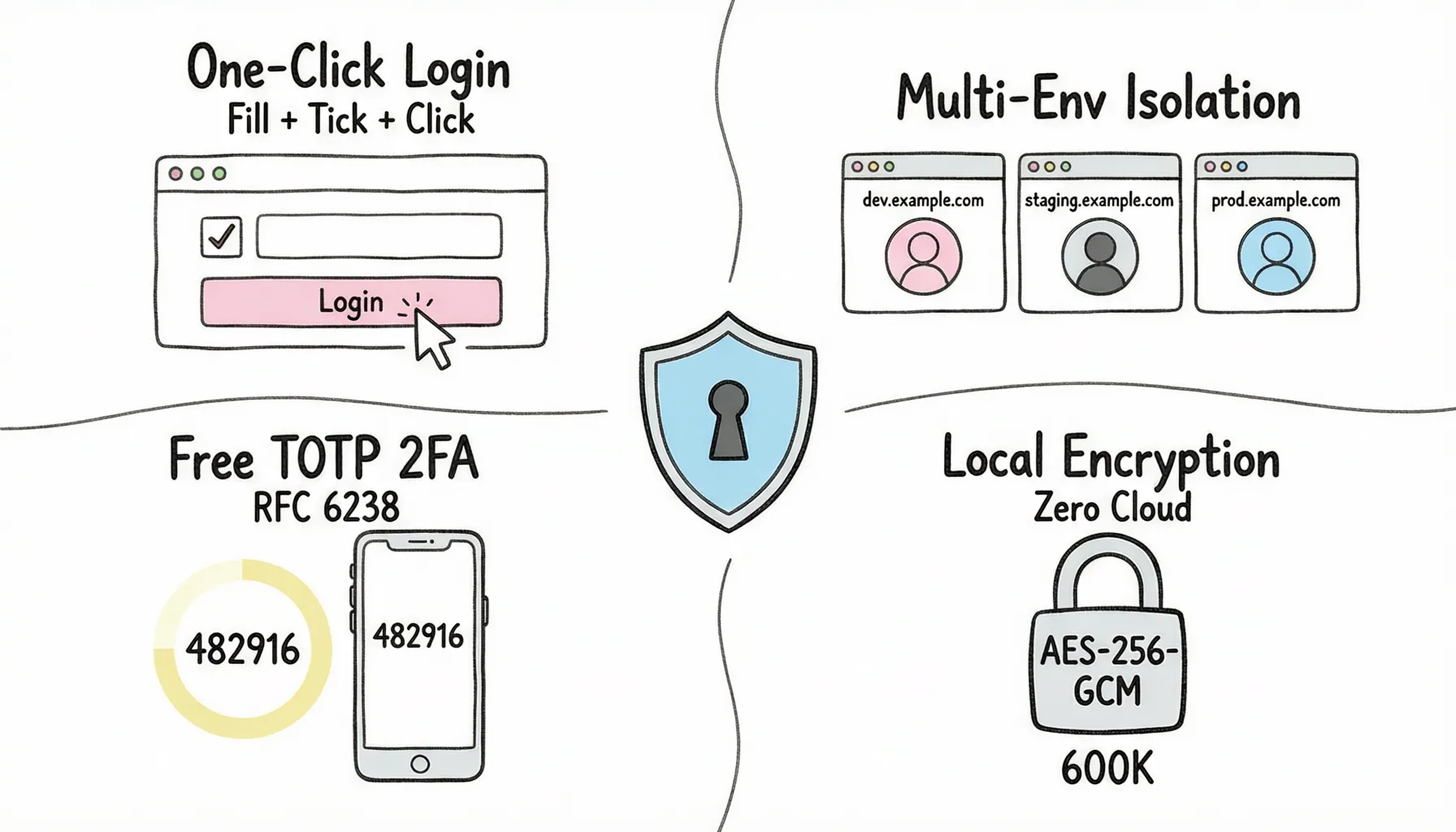
I keep four accounts for the same admin system: dev, test, staging, and prod. Chrome's built-in password manager treats them all as "the same site" and fills in whichever one it feels like. Bitwarden can match URLs precisely, sure — but it only fills. After filling, I still tick the terms checkbox myself, click the login button myself, and switch to my phone to copy a 2FA code.
Small friction, repeated dozens of times a day, across every developer and QA engineer's workflow. That's why I built Account Password Helper: a zero-cloud, open-source, local-first password manager designed around multi-environment login workflows.
It's live on the Chrome Web Store, completely free, with the source released under GPL-3.0. This post covers what problems it solves, how, and — just as importantly — what it deliberately refuses to do.
Three Gaps in Existing Password Managers
Before writing a line of code, I spent weeks with every mainstream option. Three gaps kept showing up:
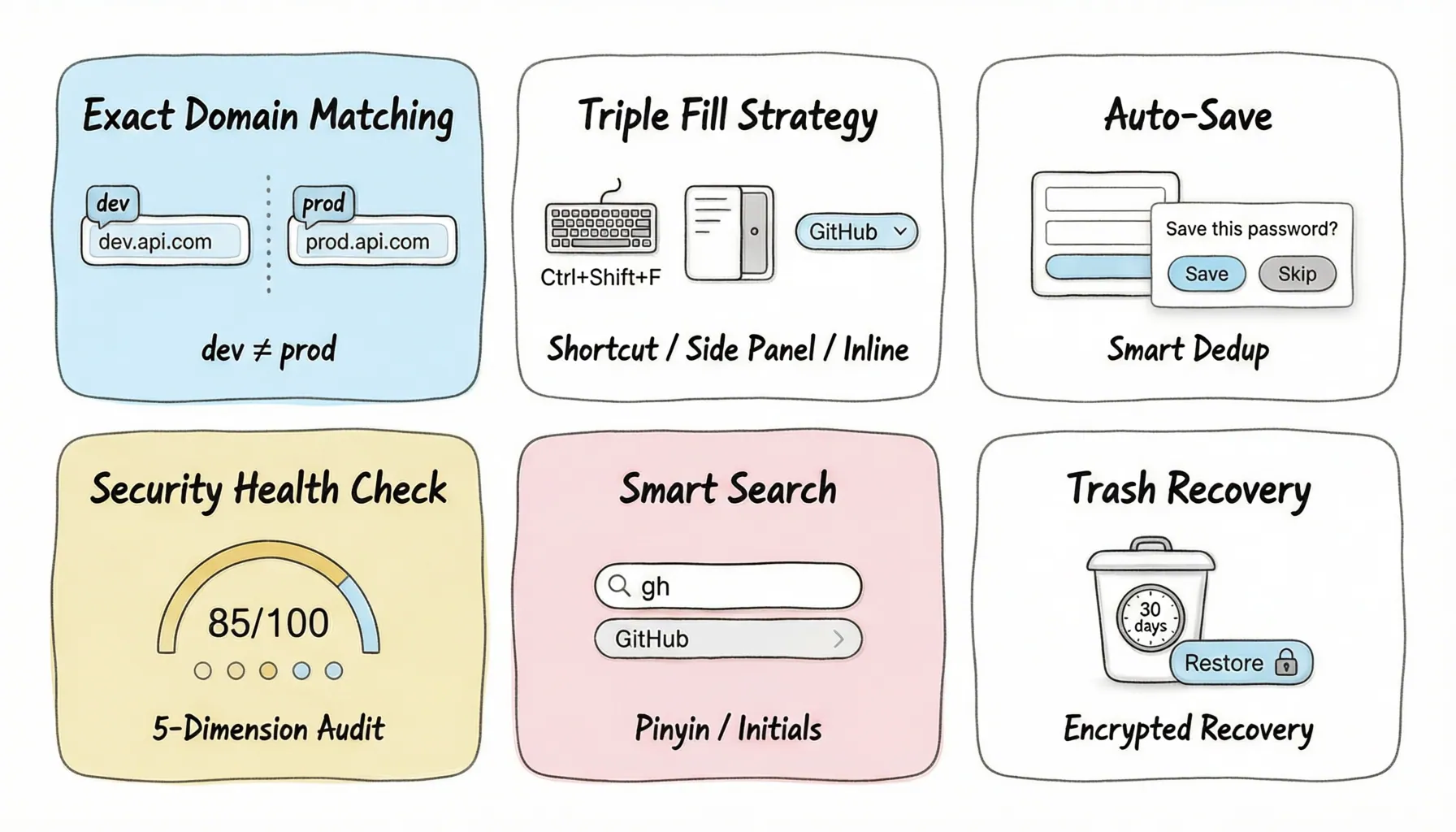
Gap 1: Multi-environment account isolation. Password managers decide which credentials to show you by matching the current domain. Most do fuzzy matching — same registrable domain means a hit. For regular users that's a kindness; for developers it's a hazard. A test account filling into a production login form can range from annoying to genuinely destructive. I wanted exact matching: only entries whose host matches exactly are shown. Local development hosts like localhost and 127.0.0.1 follow a port-aware rule instead — a page with no port shows everything so local tooling keeps working, while a page with a port only sees entries on that same port (entries that carry no port of their own always stay).
Gap 2: Logging in is not filling. A complete login is: fill username + fill password + tick the agreement checkbox + click the login button — plus a 2FA code if there's a second step. Existing tools stop after step two. Account Password Helper chains that whole flow behind one shortcut, Ctrl+Shift+F (Cmd+Shift+F on macOS): it fills username and password and ticks the consent checkbox nearest the inputs. The final click on the login button is governed by an "Auto-submit login" setting that ships switched off, so the extension never submits a form you weren't ready to submit; if you don't want it on permanently, every row in the side panel has its own "fill and login" button. For two-step logins (GitHub-style "password first, code next"), a live TOTP capsule appears on the page and the current code is filled into the next step automatically. No phone needed.
Gap 3: Privacy and trust. Cloud password managers can be excellent, but you're still entrusting every credential to one company's servers and business continuity. For some of us — myself included — "data never physically leaves the browser" is not a nice-to-have. It's the prerequisite.
A Tour of the Core Features
One-Click Login and Four Ways to Fill
Filling sounds trivial until modern frameworks get involved: React controlled components ignore direct value assignment, custom input widgets swallow standard events. The filler tries three degradation steps in order — native value setter plus input event, execCommand, and synthesized keyboard events — stepping down until something sticks.
There are four entry points: inline fill (default — a key icon appears when the input is focused, one click opens an account dropdown), side panel fill, right-click fill in an input (fill username / password / 2FA code, or generate & fill a strong password when signing up — the latter never requires unlocking the session first), and Quick Fill via shortcut (Ctrl+Shift+F; turn on "Auto-submit login" in preferences and it clicks the sign-in button too). When the session is locked, an "unlock to fill" card opens right on the page instead of a distant system notification; if a fill genuinely fails, an in-page notice + desktop notification + toolbar badge back each other up. Nothing is ever silently lost.
Exact Domain Matching for Environment Isolation
The matching rule is deliberately "dumb": normalized hostnames must be equal. Computing the registrable domain carries an explicit list of 27 two-part ccTLDs (com.cn, co.uk and friends, covering CN/UK/HK/TW/JP/KR/AU/SG) so example.com.cn is never wrongly truncated to com.cn; countries missing from that list are caught by a fallback — a two-letter TLD paired with a common second-level label such as com, co, or net is treated as a three-part registrable domain, which only ever narrows matching. The same rule governs the side panel list, the inline dropdown, and auto-save capture — there is no path through which a prod credential can leak into a test page.
Built-in TOTP, Not a Toy
TOTP codes (RFC 6238) are generated locally, shown live with a countdown. Adding a secret supports two flows: scanning an on-page QR code (decoded in-browser with jsQR — no external request), or uploading an image. Combined with the two-step login handoff described above, your phone authenticator can retire from this workflow.
Offline Security Health Check
One click audits your whole vault and produces a 0–100 score built from four weighted dimensions: reuse (weight 35), weak passwords (25), suspected exposure (20), and stale passwords (20), computed as 100 - 35×reuseRatio - 25×weakRatio - 20×exposureRatio - 20×staleRatio. Missing 2FA is counted and listed as its own risk item but contributes no points. Weak-password and exposure checks run against local dictionaries — a built-in common-password list plus a bundled offline list of nearly a thousand commonly leaked passwords (top1000.json, 999 entries) — with no HIBP-style online lookup. The health checker itself must never become a data egress point.
Migration and Backup
Import auto-detects export formats from Chrome, LastPass, Bitwarden, and 1Password; the dialog accepts CSV and JSON (save a spreadsheet as CSV first — there is no .xlsx parser), with Chinese/English column-name mapping. Backup comes in three layers: encrypted backup files (.aph, AES-256-GCM over the whole vault, previewable after decryption on import), email backup, and scheduled backup reminders. Deletes go through a 30-day trash first, and password changes keep snapshots you can restore from — 3 per entry by default, configurable from 1 to 10.
Experience Layer
Six color themes, instant Chinese/English switching (extension pages and injected UI switch together), site favicons read from Chrome's local icon cache (zero external requests), and a dual-mode password generator (random characters, or passphrases drawn from a bundled 3080-word English list — 4 words by default, roughly 46 bits of entropy). Login pages also get a draggable floating fill button that snaps to the screen edge with adjustable opacity, and the toolbar popup gathers the management page, side panel, direct fill and session lock onto one screen.
Then there is a layer of small everyday details: the "+" in the side panel header adds an account for the current site in place, with the URL prefilled from the domain; one icon beside the search box switches between "This site" and "All entries", and in all-entries mode an off-site account opens in a new tab instead of being pushed into the current page's form; each row's "View details" shows the full remark and the password change history in a read-only drawer, so a quick look no longer means entering edit mode; master password fields detect Caps Lock live, so a case typo stops masquerading as a "wrong password"; and the auto-save prompt flags weak or reused passwords inline — a heads-up that never blocks saving.
The Security Model: Trust Requires Auditability
A password manager earns trust through verifiable design, not slogans. The hard boundaries here:
- Local-first, with one outbound exception. No backend, no account system, no telemetry or analytics — credentials land only in your browser's local storage. The extension does declare
<all_urls>host permission, but that exists so the content script can locate login forms on any site, not to make requests. The only thing that actually leaves the machine is the update check, on a roughly 6-hour schedule: ano-corsHEAD against the Chrome Web Store page to test reachability, then a read of the public GitHub Releases API for the version number. Anonymous, no credentials, no account data in either direction. - Field-level encryption. Username, password, URL, notes, and TOTP secret are each encrypted individually. The storage layer sees only ciphertext.
- Standard algorithms, no invention. PBKDF2-SHA256 (600,000 iterations) for key derivation, AES-256-GCM authenticated encryption, all via the browser-native Web Crypto API. A follow-up post covers the implementation in depth.
- Sessions have lifecycles. 24 hours by default (1 hour to 7 days configurable). Idle auto-lock tied to system screen lock, and relock on browser restart, are both opt-in and off by default; one-click manual lock is always available. On any lock path, in-memory key handles and decrypted snapshots are wiped.
- Fully open source (GPL-3.0). Every line of the crypto, every permission in the manifest, every network call — you can read them all yourself. 4654 automated tests cover the crypto, session, storage, and message-routing paths (they run locally, in the pre-commit hook, and in CI on every push and pull request).
An honest disclaimer too: this tool is positioned for development, testing, and everyday logins. I don't recommend storing banking or payment credentials in any browser extension. And a forgotten master password cannot be recovered by default — unless you enrolled an offline recovery key beforehand, with encrypted backups as the other way back. Stating boundaries plainly is what security products should do.
Who It's For
- Developers — environment isolation + one-click login, dozens fewer clicks per day;
- QA engineers — switch test accounts fast across environments;
- Privacy-conscious users — no cloud service, no account, no subscription, and your password data stays in your browser;
- Everyone else — stop memorizing passwords; keep TOTP next to the password; generate strong ones with one click.
Closing
The project has grown from v1.0 in May 2026 to v3.9 now, every version pulled out of real daily use. It doesn't try to be "yet another Bitwarden." It aims to make one scenario — multi-environment developer logins — frictionlessly good, while welding the privacy floor into the architecture.
If you're tired of mixed-up test accounts and phone-authenticator juggling, give it a try:
- Install from the Chrome Web Store (auto-updates)
- GitHub repository — source, Releases downloads, issues; a Star is the best support an open-source project can get
- Online demo with bilingual FAQ
Next up: how to make the extension side panel open in under one second — a trap every Manifest V3 developer steps into.